What Is HDMI and Where Does It Win?
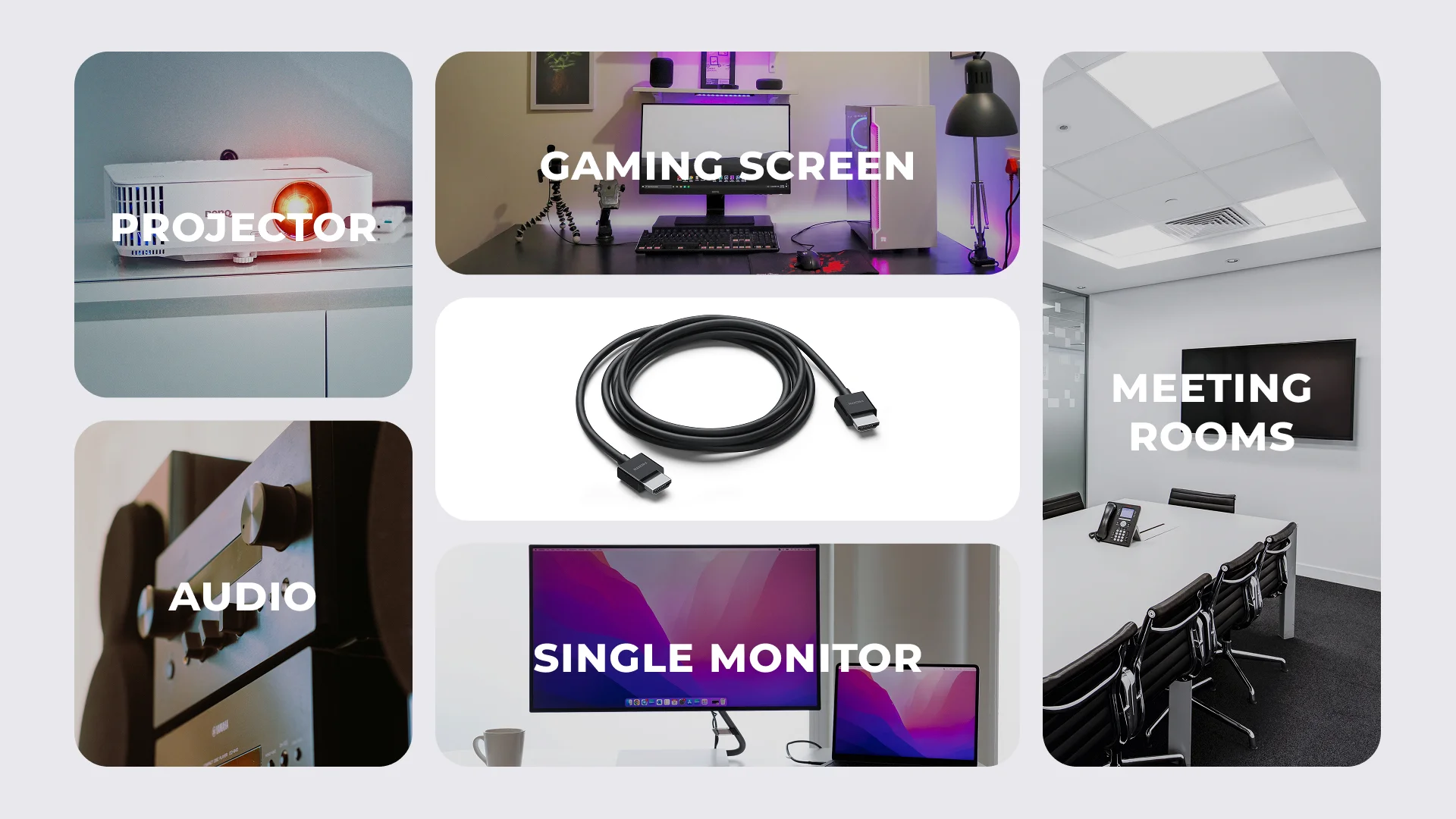
HDMI stands for High-Definition Multimedia Interface. It sends video and audio through one cable and is widely used on TVs, projectors, laptops, soundbars, and meeting room displays.
In practical terms, what is HDMI best for? It is the universal standard for TVs, projectors, meeting room screens, and simple single-monitor setups.
HDMI is especially practical when the setup needs to be simple: plug a laptop into a conference room screen, connect a media player, or run one office monitor from one docking station port. HDMI is widely associated with consumer audio/video (AV) devices, while DisplayPort is more common in PC monitor environments.
Where HDMI wins:
Meeting room TVs and projectors
One monitor on a laptop or dock
Audio/video (AV) setups where audio matters
Simple plug-and-play connections
Gaming screens when the monitor, console, GPU, and HDMI cable all support the required version
In my own desk tests, HDMI is usually the fastest route when someone just needs the screen to appear during a meeting.
It is usually a direct, familiar connection for conference room screens and projectors.
What Is DisplayPort and Where Does It Win?
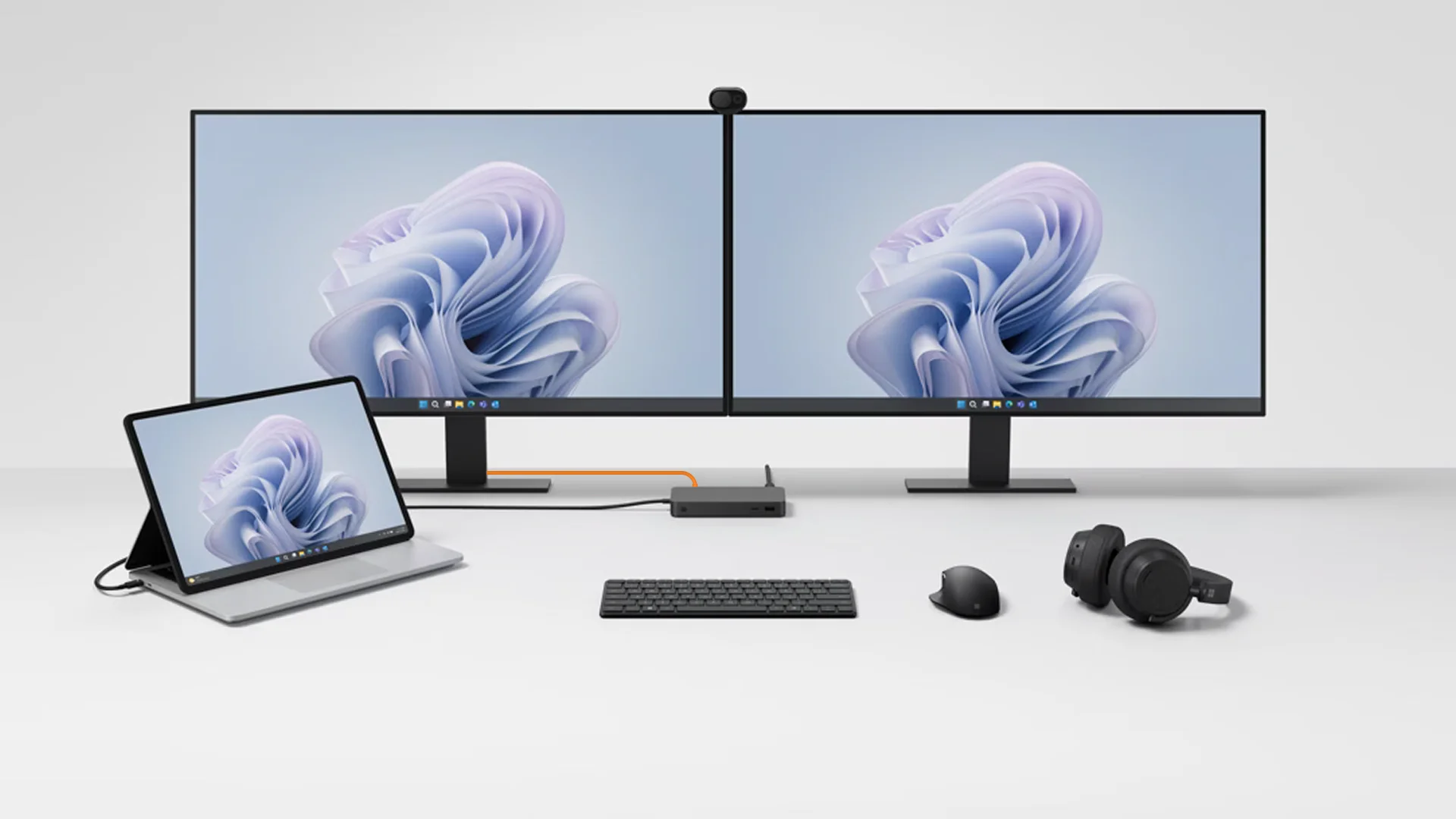
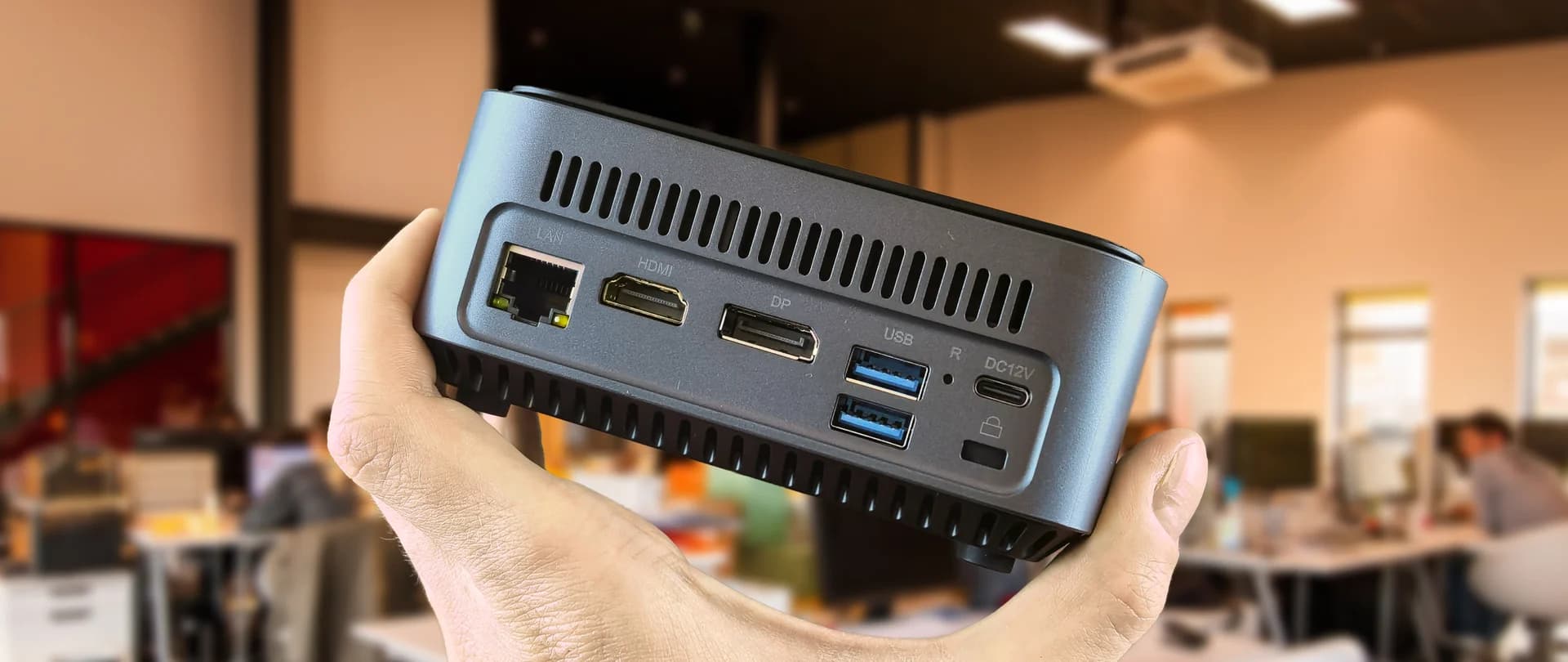
DisplayPort is built for PC displays, docking stations, business monitors, and IT-managed desks. Its main office advantage is that it is often better for multi-monitor workstations.
Some DisplayPort setups can also support daisy chaining. In simple terms, daisy chaining means one DisplayPort cable goes from the dock to monitor one, then another cable goes from monitor one to monitor two. This can reduce cable clutter and save ports on the dock or laptop.
Daisy chaining can work when the laptop, dock, cable, and monitors support DisplayPort multi-screen features such as MST. HDMI does not support daisy chaining in the same way.
Where DisplayPort wins:
Multi-monitor office desks
Docking station setups
Daisy chaining with compatible monitors and docks
Cleaner cable routing
High-resolution business monitors
Scalable workstations for growing teams
High-refresh gaming monitors when the GPU, monitor, and cable support the required DisplayPort version
For a displayport vs hdmi office monitor decision, DisplayPort is the stronger default for productivity desks. HDMI is easier for one screen; DisplayPort is better when the desk has to grow.
HDMI vs DisplayPort Spec Comparison
Before choosing a cable, look at the actual desk setup. A single monitor, a meeting room screen, and a multi-monitor workstation do not need the same connection. In office use, the better choice is usually the one that reduces setup time, keeps cable routing cleaner, and keeps the desk easy to support later.
Office workspace need | HDMI | DisplayPort | Recommended choice |
Single office monitor | Simple plug-and-play connection | Works well, but may be more than needed | HDMI for basic single-screen desks |
Multi-monitor workstation | Usually requires separate video outputs | Better suited for multi-monitor setups when the dock and monitors support it | DisplayPort for connecting multiple monitors |
Docking station workstation | Good for one external display | Better suited for multi-monitor workstations | DisplayPort |
Meeting room TV or projector | Widely available on TVs, projectors, and audio/video equipment | More common in PC monitor environments | HDMI |
Clean cable routing | More direct cable runs from the dock | Can reduce cable runs through daisy chaining when supported | DisplayPort |
Audio and video to one display | Excellent for audio/video (AV) setups | Also carries audio; HDMI remains the more familiar AV-room standard | HDMI |
HDMI vs DisplayPort Technical Specs: Resolution, Hz, and Versions
Technical specs matter when you are choosing cables for high-resolution monitors, multiple screens, docking stations, or gaming displays. They matter less for a basic single 1080p office monitor.
The important point is that the cable version alone is not enough. The laptop or desktop, GPU, docking station, monitor, cable, and operating system all need to support the same resolution and refresh-rate target.
Standard | Typical resolution / refresh-rate support | Best office use | Gaming relevance |
HDMI 1.4 | Up to 4K at 30Hz, or lower resolutions at higher refresh rates | Older monitors, projectors, basic office screens | Limited for modern gaming; acceptable for older 1080p setups |
HDMI 2.0 | Up to 4K at 60Hz | Common office 4K monitors, meeting room displays, TVs | Good for 4K 60Hz gaming when supported |
HDMI 2.1 | Up to 4K at 120Hz and 8K at 60Hz when supported | Premium displays, newer TVs, advanced meeting room screens | Strong for modern gaming monitors, consoles, and high-refresh displays |
DisplayPort 1.2 | Commonly supports 4K at 60Hz and multi-monitor setups when MST is supported | Office docks, multi-screen productivity desks, standard 4K monitors | Good for standard PC gaming setups, depending on monitor and GPU |
DisplayPort 1.4 | Supports higher bandwidth than DP 1.2; can support 4K high-refresh or 8K with Display Stream Compression when hardware supports it | Strong choice for high-resolution office monitors and advanced docking setups | Strong for high-refresh PC gaming monitors |
DisplayPort 2.1 | Designed for very high bandwidth, high-resolution, and high-refresh display setups when the full hardware chain supports it | Advanced multi-monitor workstations, premium monitors, future-proofed desk setups | Best suited to high-end PC gaming and demanding visual workflows |
For normal office desks, DisplayPort 1.2 or 1.4 is often enough, depending on the number of monitors and the resolution.
For newer high-refresh gaming monitors or premium workstations, DisplayPort 1.4, DisplayPort 2.1, or HDMI 2.1 may be relevant.
For IT buyers, the safest rule is this: choose the cable standard based on the actual monitor target.
A 1080p office display, a 4K 60Hz productivity monitor, a dual-monitor dock, and a 4K 120Hz gaming screen do not need the same cable.
The Bottom Line
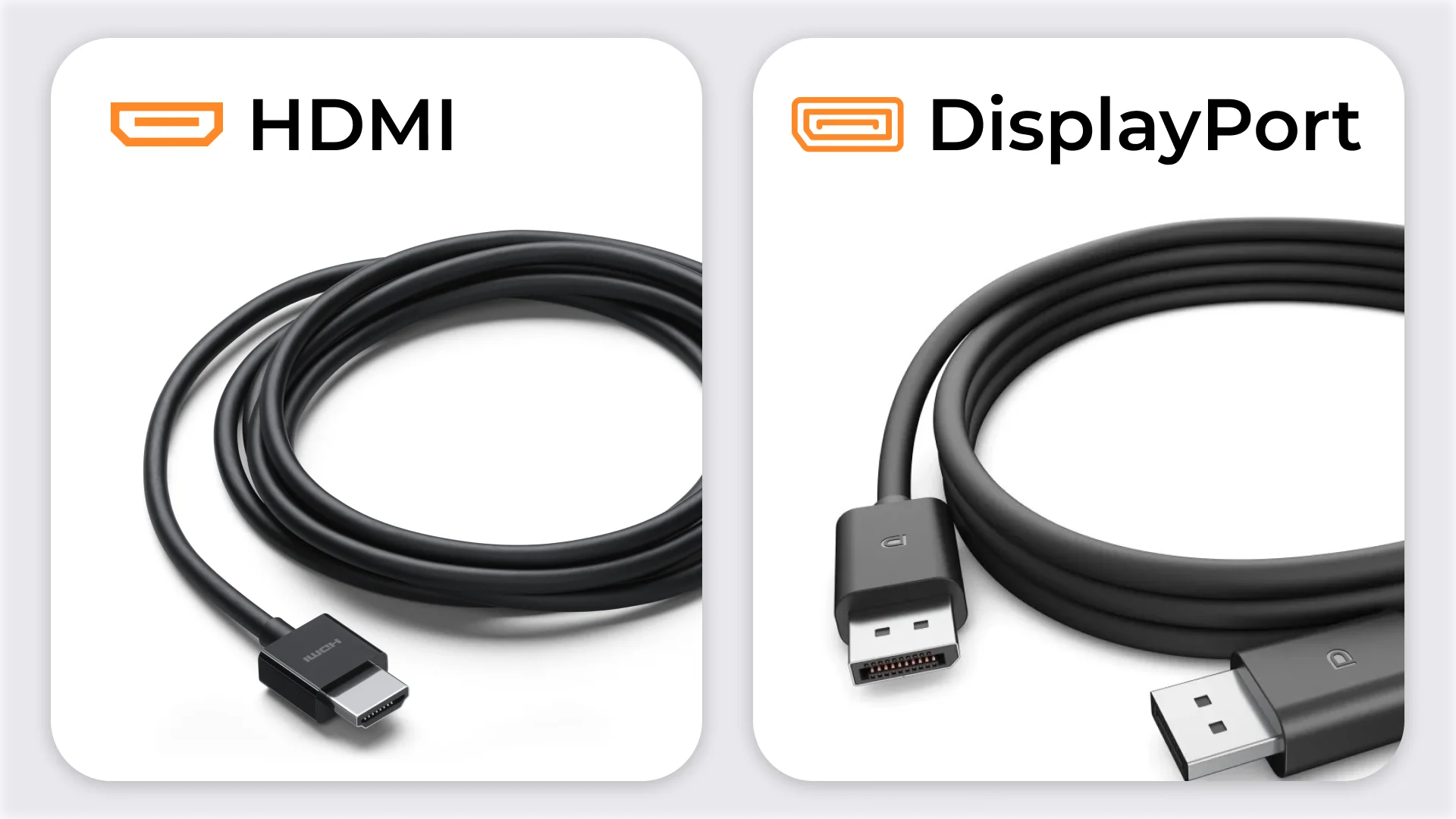
For a single screen or conference room display, HDMI is the easy answer. For multi-monitor office desks, docking stations, and scalable workstations, choose DisplayPort when the dock, laptop, and monitors support the required multi-display features.
Find the right cables and professional monitors for your desk setup. Choose HDMI cables for meeting room screens, DisplayPort cables for compatible office monitor desks, and docking stations when your team needs clean multi-screen workstations.
For gaming displays, choose the cable based on the monitor’s target resolution and refresh rate. HDMI 2.1 is often the better match for modern gaming TVs and consoles. DisplayPort 1.4 or 2.1 is usually the stronger choice for PC gaming monitors and high-refresh desk setups.
FAQ
Is HDMI enough for an office monitor?
Yes. HDMI is a good choice for one office monitor, especially if you want a straightforward plug-and-play setup.
Is DisplayPort better for connecting dual monitors?
Yes. For connecting dual monitors, DisplayPort is usually the better choice because compatible monitors and docks can support multi-monitor setups more efficiently.
If you want to use daisy chaining, check that the laptop or dock supports DisplayPort MST, USB-C with DisplayPort Alt Mode, or Thunderbolt, and that the monitor supports the required daisy-chain feature.
Can I use HDMI and DisplayPort at the same time?
Yes. Many docking stations and monitors allow mixed outputs. Just check that the dock supports the number of screens and resolution you need.
For office IT teams, the important point is not only the port shape, but the dock’s supported display count, resolution, refresh rate, and operating system compatibility.
Which cable should an office IT manager standardise on?
For desks, standardise on DisplayPort where possible. For meeting rooms, keep HDMI ready because TVs and projectors commonly expect it.
Which is better for gaming: HDMI or DisplayPort?
It depends on the device. HDMI 2.1 is often the better fit for modern TVs, consoles, and living-room gaming displays. DisplayPort 1.4 and DisplayPort 2.1 are usually stronger choices for PC gaming monitors, especially when high refresh rates, high resolutions, or multi-monitor setups matter.
For gaming, always check the monitor, GPU, cable, and port version together. A high-refresh monitor will not perform at its full specification if one part of the connection chain is limited.