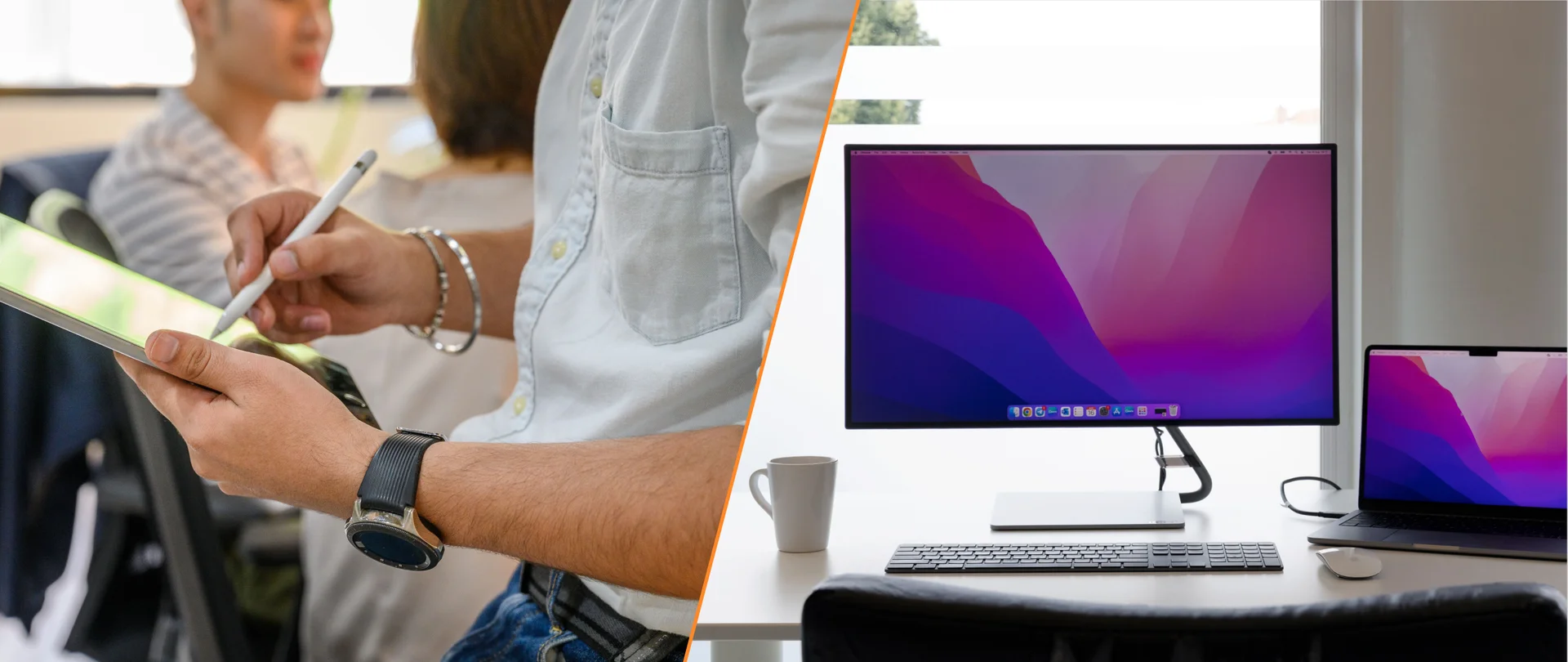
What to Prepare Before Putting Together an IT Kit for a New Employee
Before choosing equipment, collect the information that will determine the kit’s contents. This will help HR managers, IT specialists and office administrators agree on requirements before approving the standard.
Prepare the following:
the expected number of new employees per month or quarter;
employee roles: administration, sales, creative specialists, developers and management;
the preferred laptop platform: Windows, macOS or both;
the standard monitor size and docking station type;
the required peripherals: keyboard, mouse, headset and webcam;
a list of software and security requirements for corporate laptops;
a replacement plan for chargers, docking stations, keyboards, mice and monitors.
This list helps you plan workstation preparation around specific requirements and repeat the process with each new hire.
Essential Equipment for a Standard IT Kit for a New Employee
Every new employee should receive a fully equipped and preconfigured workstation. The basic kit should be easy to deploy and accommodate the needs of different employees: creative teams, administrators, sales staff, developers and managers.
Before deployment, make sure each workstation includes the following core components:
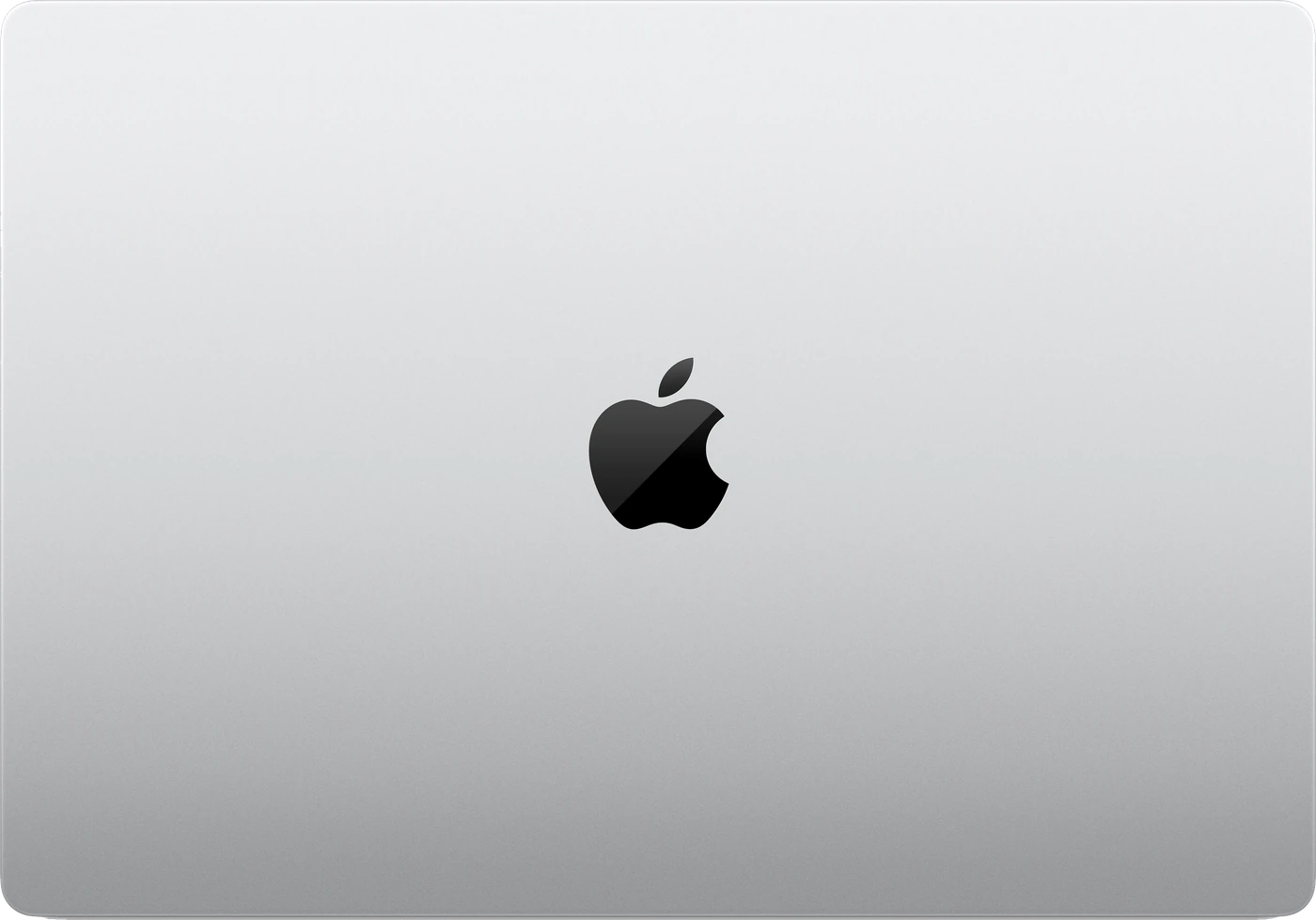
A preconfigured business laptop: for example, a MacBook Pro with a suitable configuration. Choose the device based on work tasks, performance, reliability and security requirements.
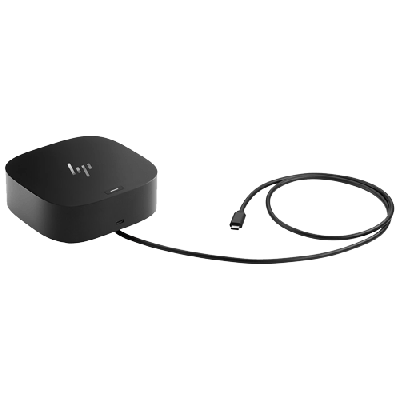
A compatible docking station: connects the monitor and peripherals to the laptop through a single cable. Check compatibility with the selected laptop and monitor, as well as whether it provides enough power to charge the laptop.
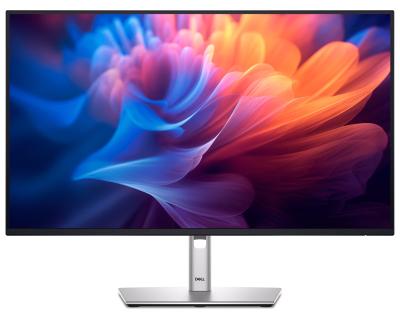
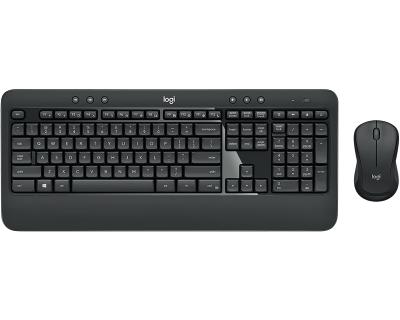
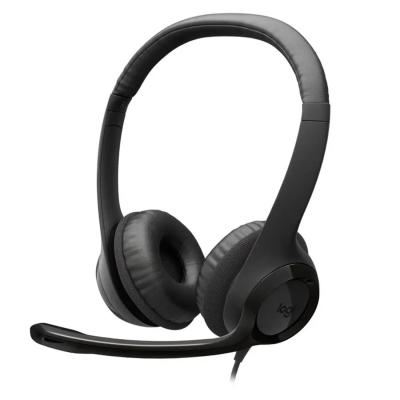
Professional peripherals: a monitor with an appropriate resolution, a comfortable keyboard, including a mechanical option, and a mouse with the required precision.
Branded welcome items: desk mats, tech accessories with custom engraving or cable organizers. They complement the core equipment, give the workstation a thoughtfully prepared appearance and reflect the company’s visual identity.
Step 1: Define a Standard Workstation for New Employees
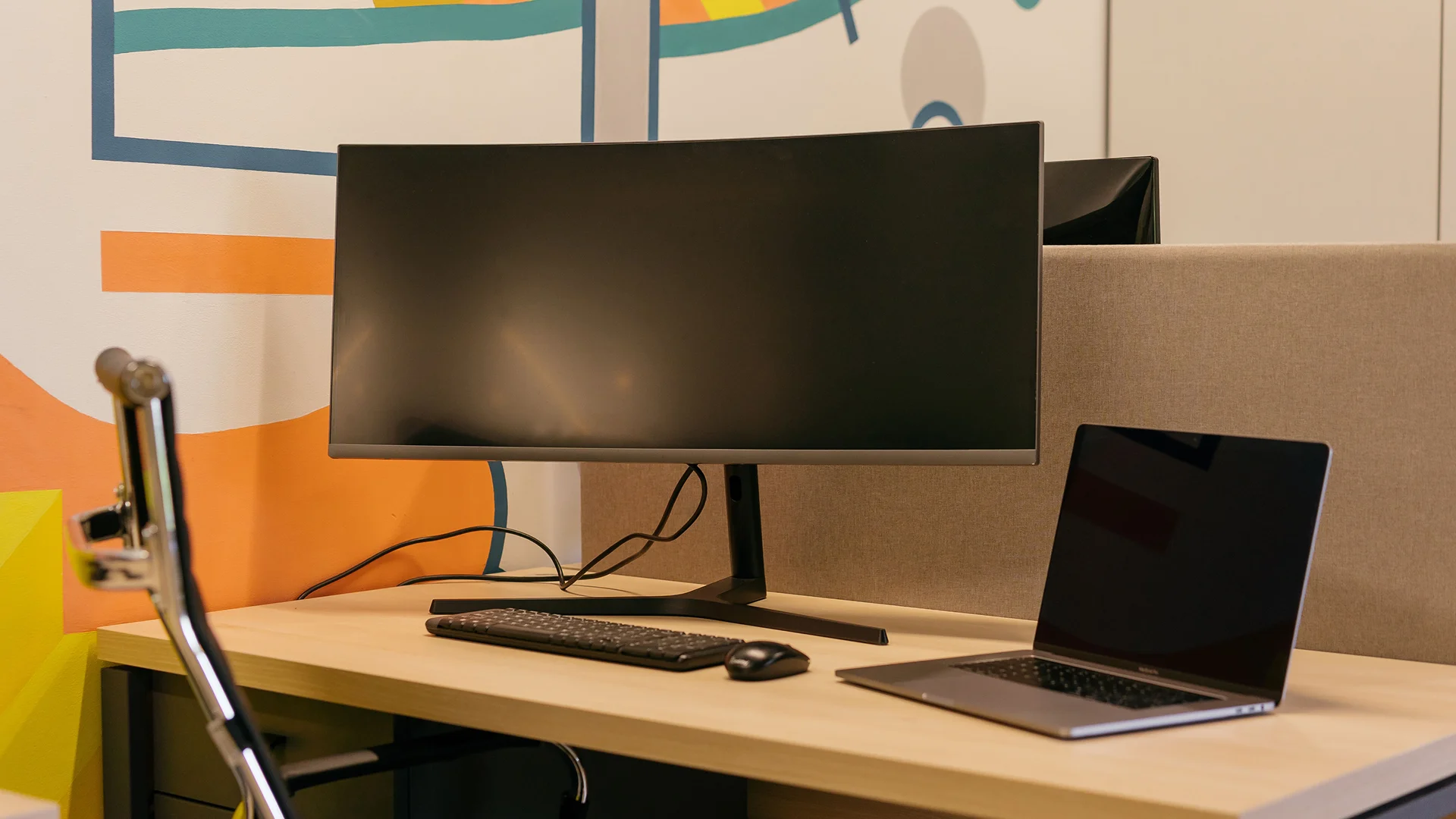
Once the initial information has been collected, turn it into an approved workstation standard. Define what “ready for work” means in your organization and document the requirements for preparing each new employee’s workstation.
The standard should clearly specify who is responsible for each preparation stage, when the equipment kit must be ready, how requests are approved and how exceptions for different roles are handled.
For startups, agencies and creative teams, this may include Apple configurations for design, development and content work. When choosing a brand, focus primarily on the needs of each role and the ability to standardize.
An approved standard also makes exceptions easier to manage: if a designer, developer or sales specialist needs a different configuration, the change is approved and documented.
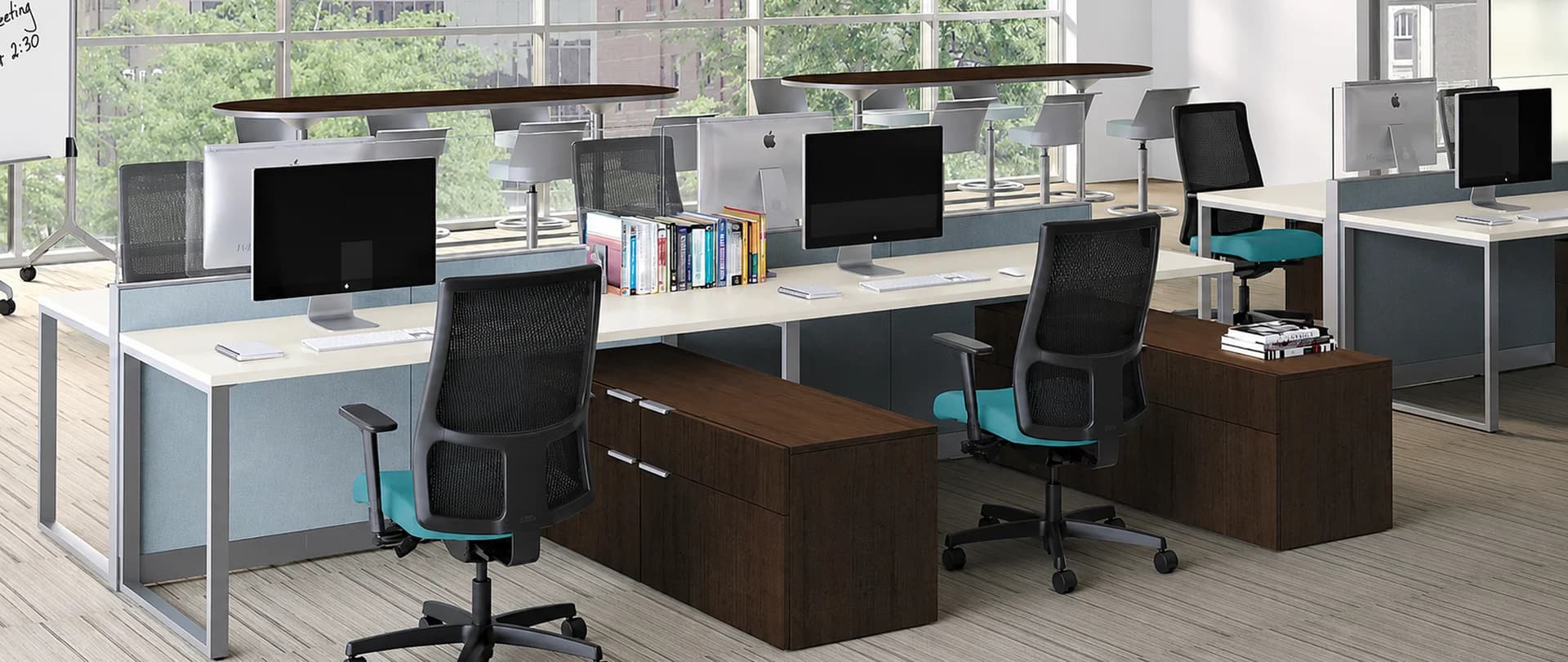
A standard workstation for a new employee, with a laptop, monitor, keyboard, docking station, headset and ergonomic chair.
Step 2: Choose Core Hardware with Ownership Costs in Mind
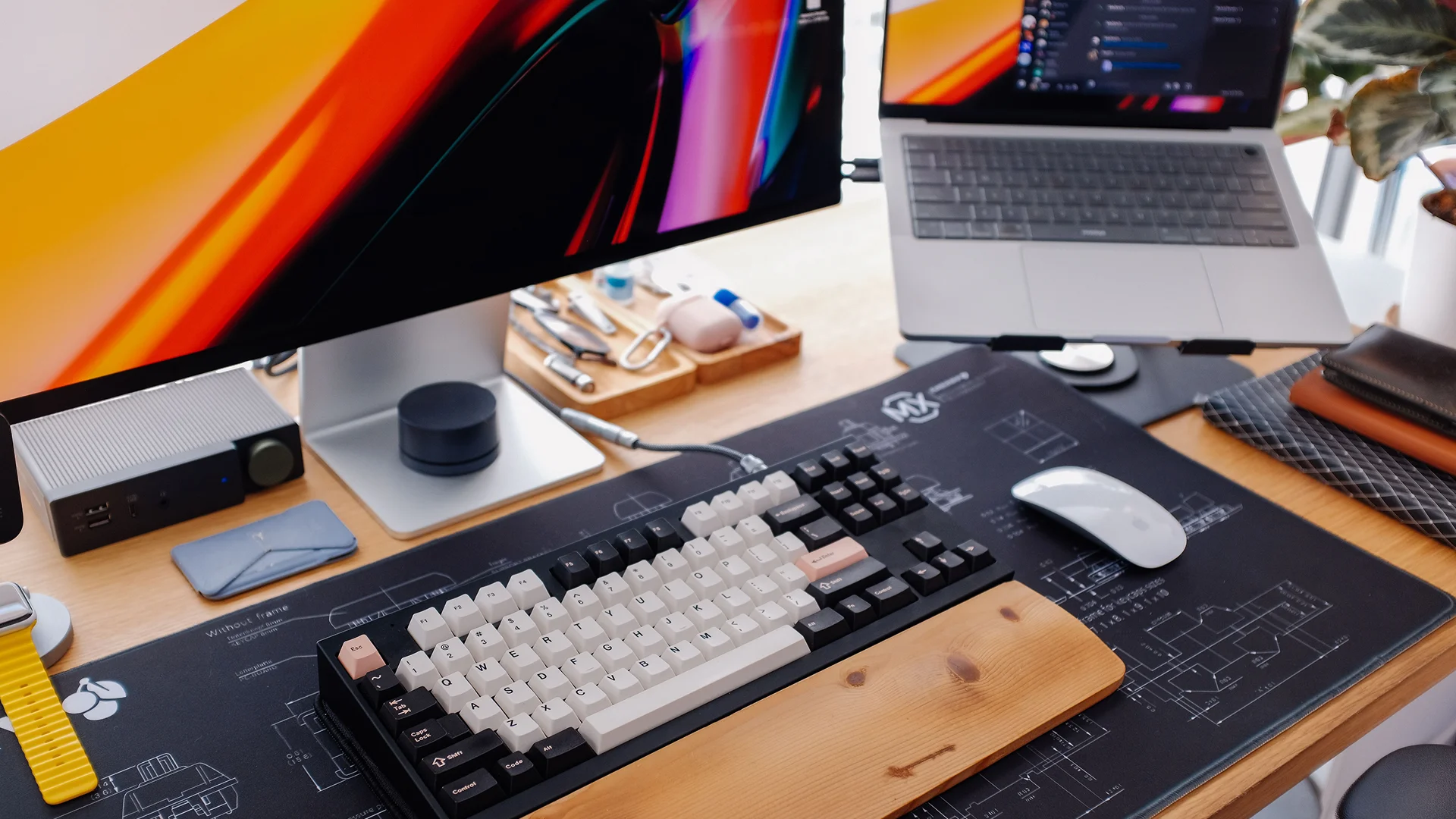
From a consultant’s perspective, the best laptop offers a balance of price, warranty, performance and service life. The highest or lowest price alone does not make a model the right choice.
Choose a standard model with enough performance headroom for work applications over its planned service life, for example, three years. For a B2B startup focused on design, a MacBook Pro may be a suitable choice. When assessing ownership costs, consider the expected resale price, warranty terms and demands on IT support: these depend on the configuration, usage and support arrangements.
Equipment Category | Recommendation | Business Benefit |
Main device | A business laptop suited to the employee’s tasks, such as a MacBook Pro with an M-series chip | The opportunity to recover part of the cost through resale; an appealing workstation for specialists |
Display | A 24-27-inch external monitor | Comfortable desk work and easier use of applications |
Connectivity | A compatible docking station | Simple connection; a common standard for the selected configurations |
Peripherals | Keyboard, mouse and headset | Fewer setup delays and a quicker transition to work tasks |
Step 3: Standardize Docking Stations, Cables and Desk Connections
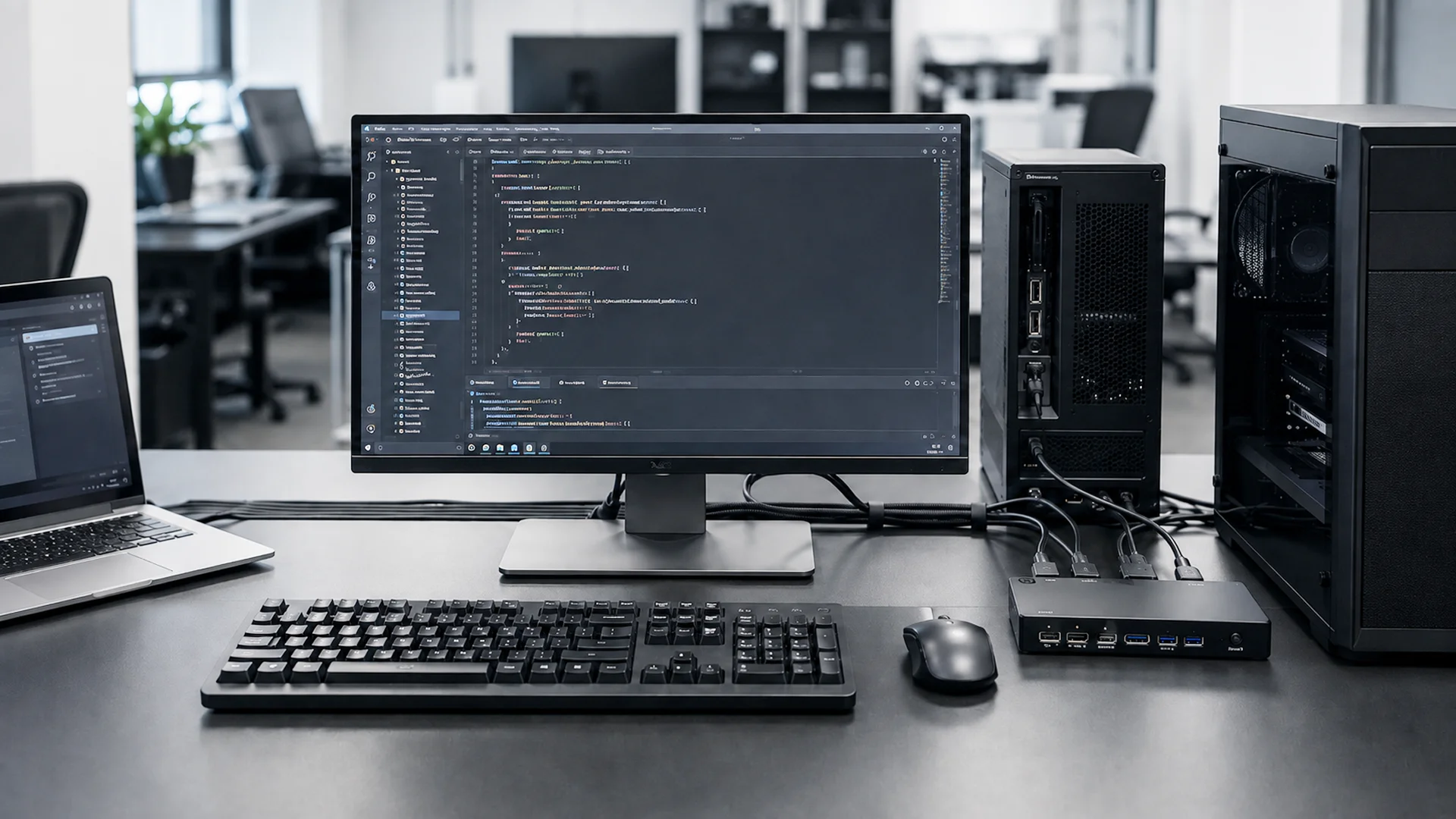
For a growing agency, a consistent connection setup at every workstation matters. Include a compatible docking station in the equipment kit, establish cable management rules and prepare a connection checklist.
This allows employees to disconnect their laptops for a meeting and then return to their desks by connecting a single cable. I often notice that onboarding goes smoothly when teams standardize cable types, docking stations and monitor connections.
A common standard makes connecting easier when changing workstations and helps maintain a tidy workspace. For startups and agencies, this kind of office can also be an advantage when attracting specialists.
Step 4: Automate Corporate Laptop Deployment
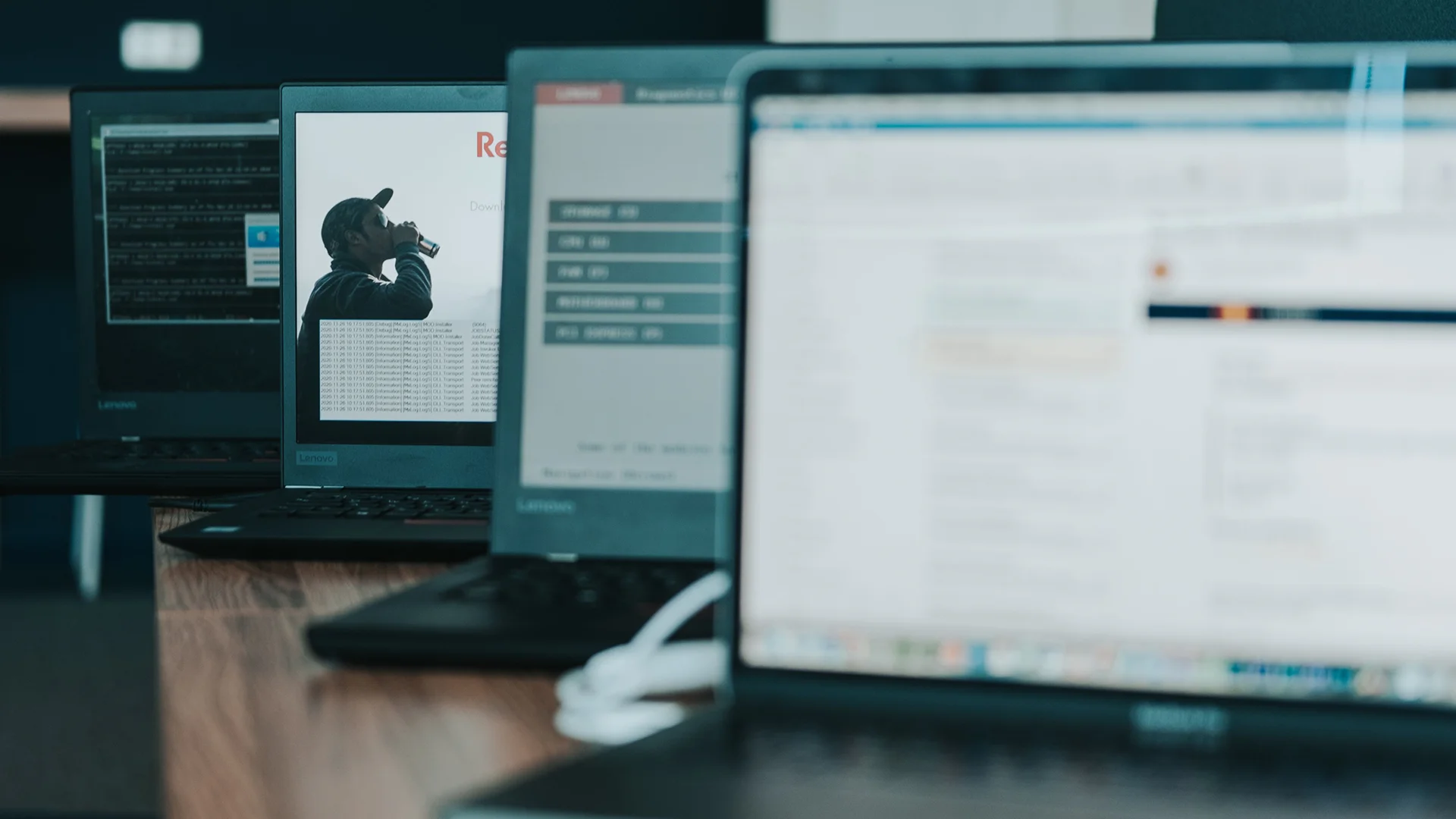
Establish a consistent process for deploying corporate laptops. Use a standard checklist and, where possible, handle recurring configuration tasks and app installation through a system that lets your IT team manage them from one place. Each device should be prepared with the security policies, user access permissions and software required for the employee’s role.
For startups and agencies, this makes the first working day easier: the employee opens the laptop, signs in and starts using tools that are already configured. Preparing the device in advance reduces time spent waiting for setup and helps create a positive first impression of the company.
Step 5: Prepare the Workstation for the Employee’s Arrival
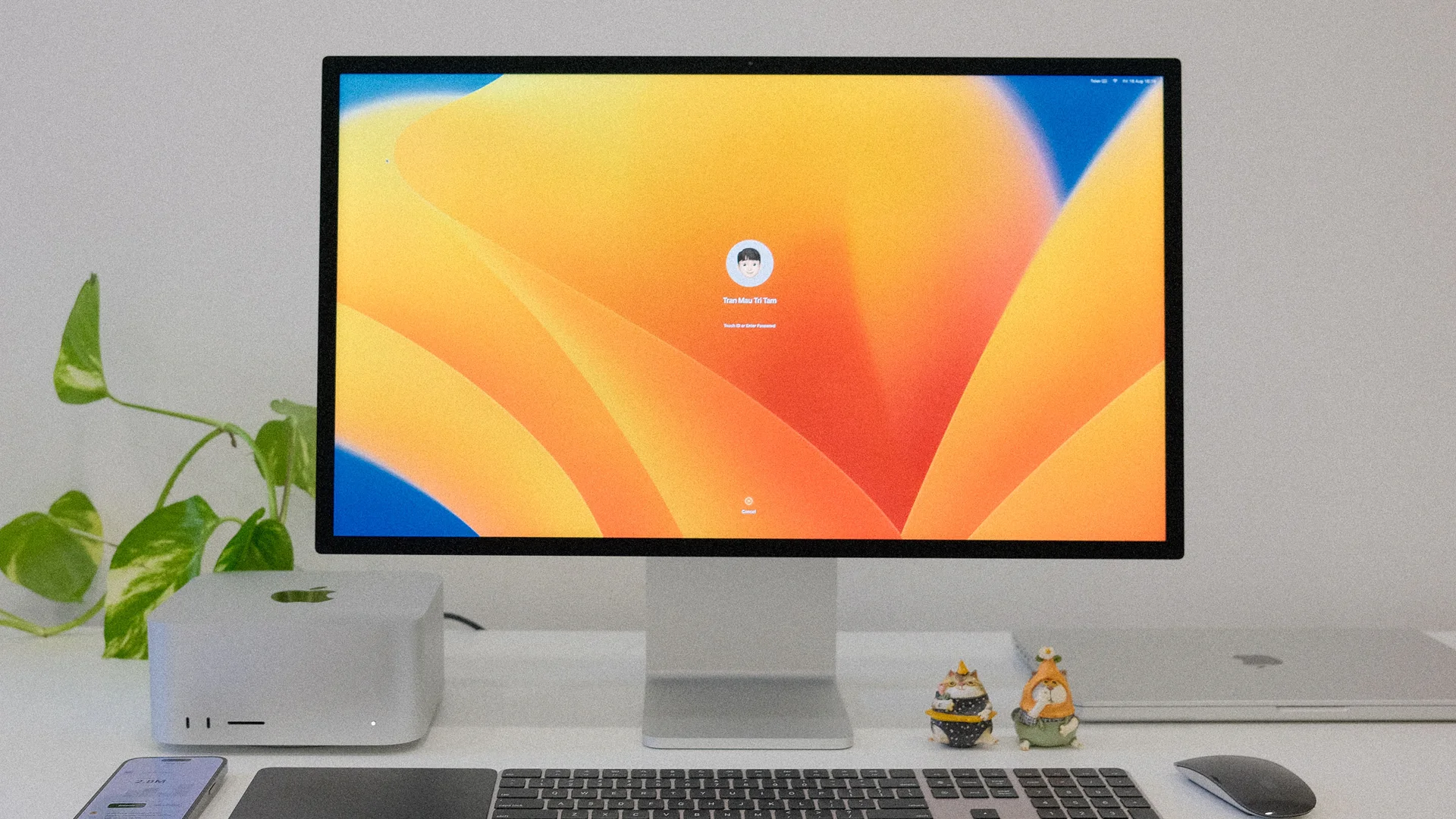
The final stage brings together appearance, readiness for work and the company’s visual identity. Before the employee arrives, place the laptop, monitor, docking station, peripherals and welcome items at their workstation.
A prepared workstation makes the equipment handover straightforward and creates a positive impression on the first day. Make sure the employee can sign in, open the required applications and files, connect to the network and make a work call. Thoughtful presentation complements this readiness and shows the company’s care for its new employee.
Common Mistakes to Avoid
In my experience as a consultant, even promising startups face difficulties when preparing workstations if they make the following mistakes:
Buying consumer equipment without checking requirements: an attractive appearance does not confirm suitability for a corporate environment. Make sure the device supports the required security and management features and that the warranty terms meet your needs.
Neglecting cable management: tangled cables make equipment harder to connect and maintain, while also detracting from the appearance of the workstation.
Inconsistent presentation: noticeable differences in the quality and style of keyboards, laptops and other devices can undermine the workstation’s cohesive appearance and the company’s image.
Reactive purchasing: urgently buying equipment one item at a time without a common standard can increase the total cost of ownership (TCO) and delay getting new employees ready for work.
Improve New Employee Onboarding with Standardized IT Kits
Improve workstation preparation for new employees. Let our team help you select standardized IT kits.
If your company regularly hires employees, opens a new office or brings workstations under a common standard, we can prepare a standard IT kit based on employee tasks, delivery schedules and the laptop deployment process.
Tell us:
the company size;
the expected number of new employees per month or quarter;
employee roles: creative specialists, administration, sales, developers and management;
the preferred laptop platform: Windows, macOS or both;
the required equipment: laptop, docking station, monitor, keyboard, mouse, headset and webcam;
branding or engraving requirements;
delivery deadlines;
purchasing or rental preferences.
We will recommend an IT configuration that fits your hiring plan, helps prepare employees to work from day one and makes future equipment replacement easier.
FAQ
How Often Should You Replace Equipment in a Standard IT Kit?
To maintain laptop performance and reliability, I recommend using a 36-month replacement cycle as a guideline. The actual timing depends on work tasks, device condition and support arrangements.
This approach helps you plan replacements in advance and assess the resale value of older devices. Replace monitors and peripherals based on their condition and employee needs.
Can You Offer Employees a Choice of Laptop Models?
Offering a choice can strengthen the company’s image as an employer. I recommend limiting it to two standard categories, for example, for creative and administrative tasks. This will allow you to maintain a consistent deployment process and control IT support costs.
How Can a Startup Maintain a Common Workstation Standard as the Team Grows?
A standardized IT kit makes team growth easier: each new employee receives a workstation configuration approved for their role, including a laptop, docking station, monitor and peripherals. This helps reduce setup errors, simplifies technical support and maintains a consistent workstation appearance.
Why Is It Important to Configure a Corporate Laptop Before the First Working Day?
Corporate laptop deployment connects IT infrastructure readiness with the employee’s first working day. When access permissions, security settings and applications for their tasks are configured in advance, the employee can start working without waiting for manual setup.