Why Business Tablets Are More Convenient on the Move

When deploying tablets in a business environment, the main advantage is often the ability to get to work quickly rather than maximum performance. Use tablets for:
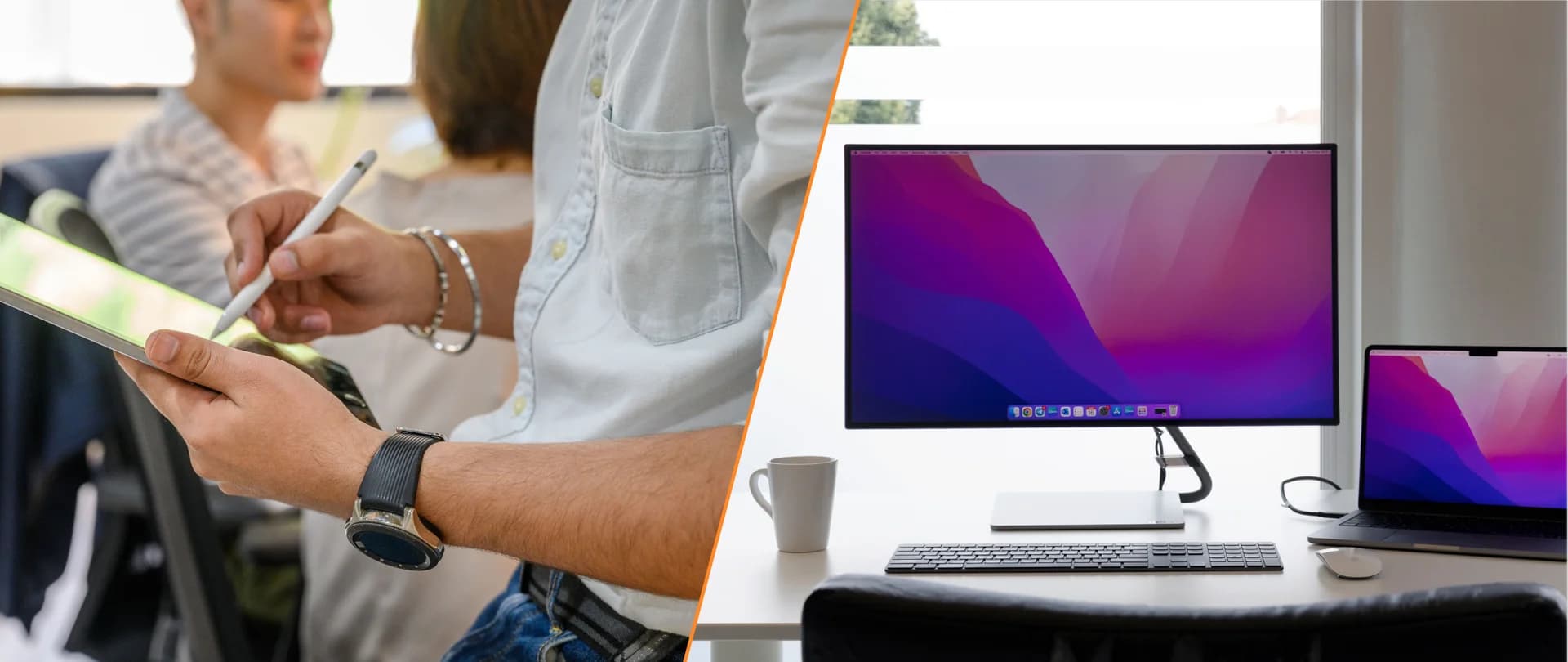
Meetings – quick wake-up, notes with a digital pen and convenient access to materials.
Presentations – a compact device that is easy to hold and operate.
Data entry on the go – touch input, quick form completion and mobile internet on models with LTE or 5G support.
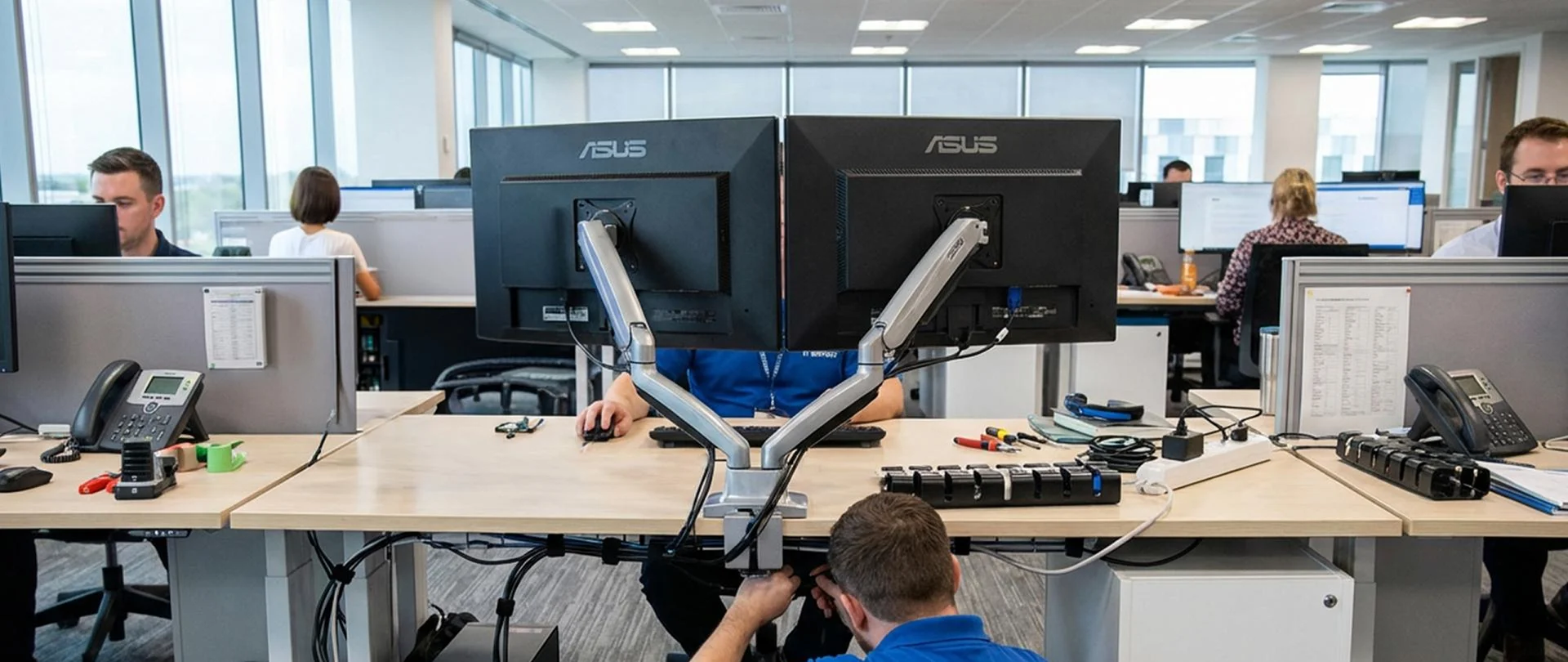
Shared workstations – connecting to a docking station to work with a monitor, keyboard and mouse.
Showing materials to clients – viewing content, adding notes and sharing information.
This is the main advantage of tablets in a business environment. The same device can be used at a desk, in meetings, for notes on site and for brief client-facing tasks without switching equipment.
A proven docking station setup:
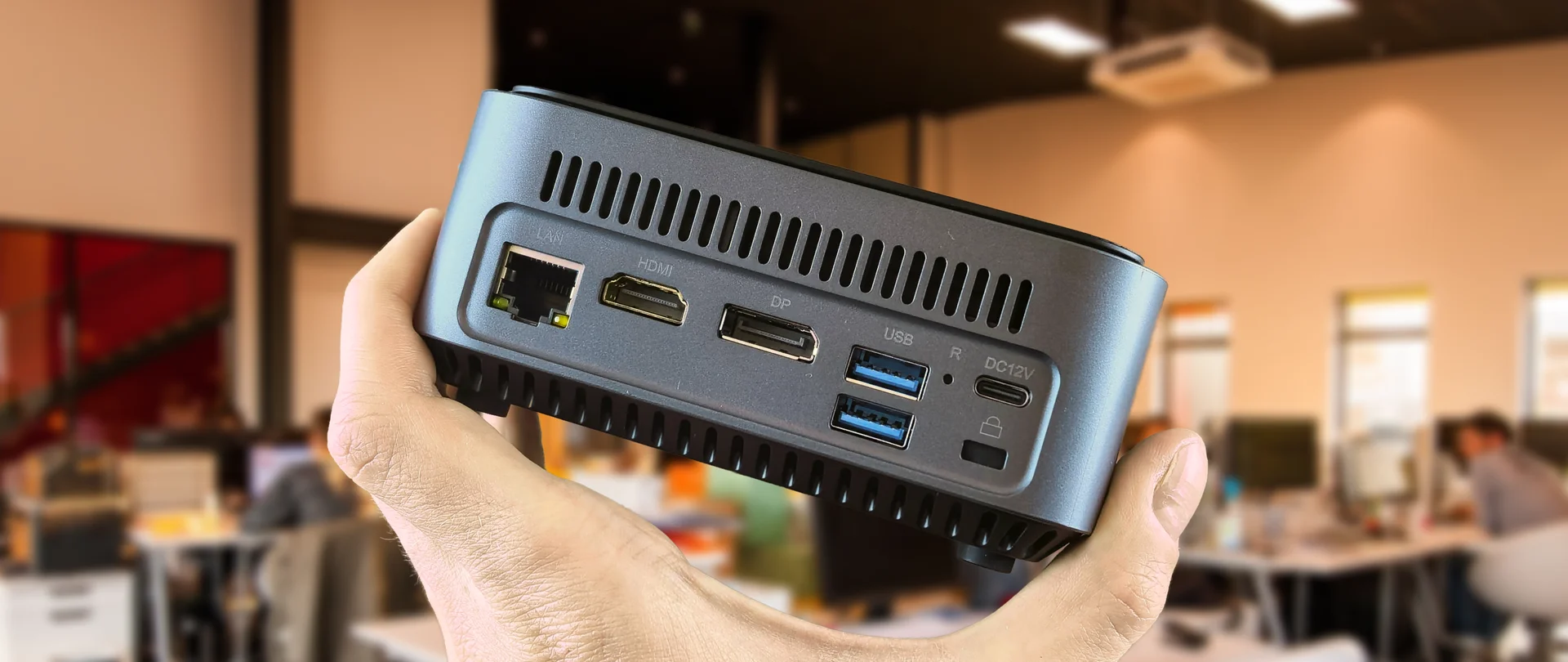
A compatible USB-C / Thunderbolt connection supporting data, video and charging.
An HDMI or DisplayPort output for connecting a monitor.
An Ethernet port (RJ45) for a wired network connection.
USB-A ports for connecting a keyboard and mouse.
USB-C charging through Power Delivery with sufficient power.
Support for using the required applications on an external monitor.
With a correctly selected and configured setup, the benefits include:
Faster transitions between workstations.
Less need to switch devices and sign in to applications again.
Less downtime when moving between locations.
Easier use of standardized devices and connections.
Fewer additional devices performing the same tasks.
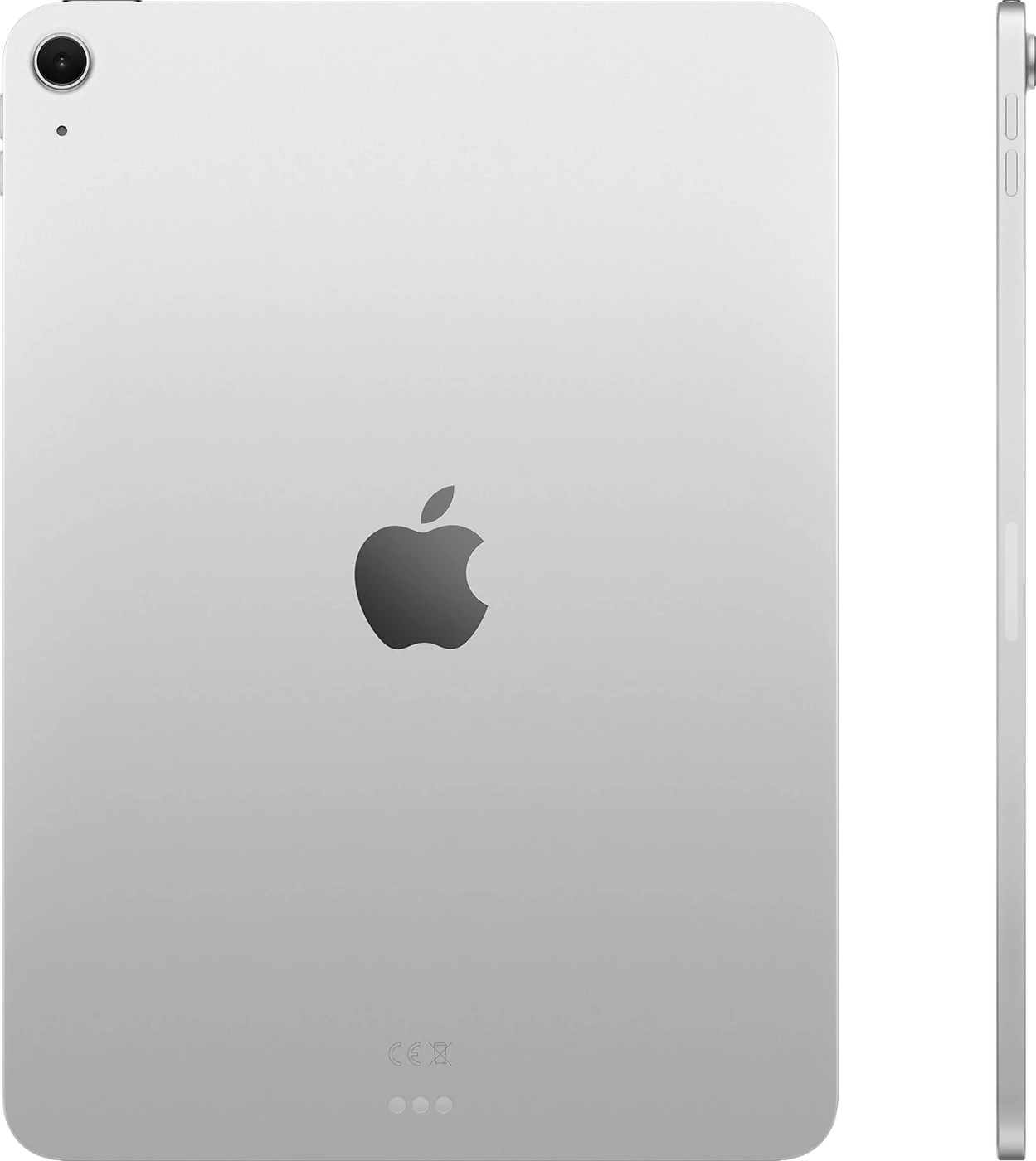
Consistent Connections: Why Tablets and Laptops Should Connect the Same Way
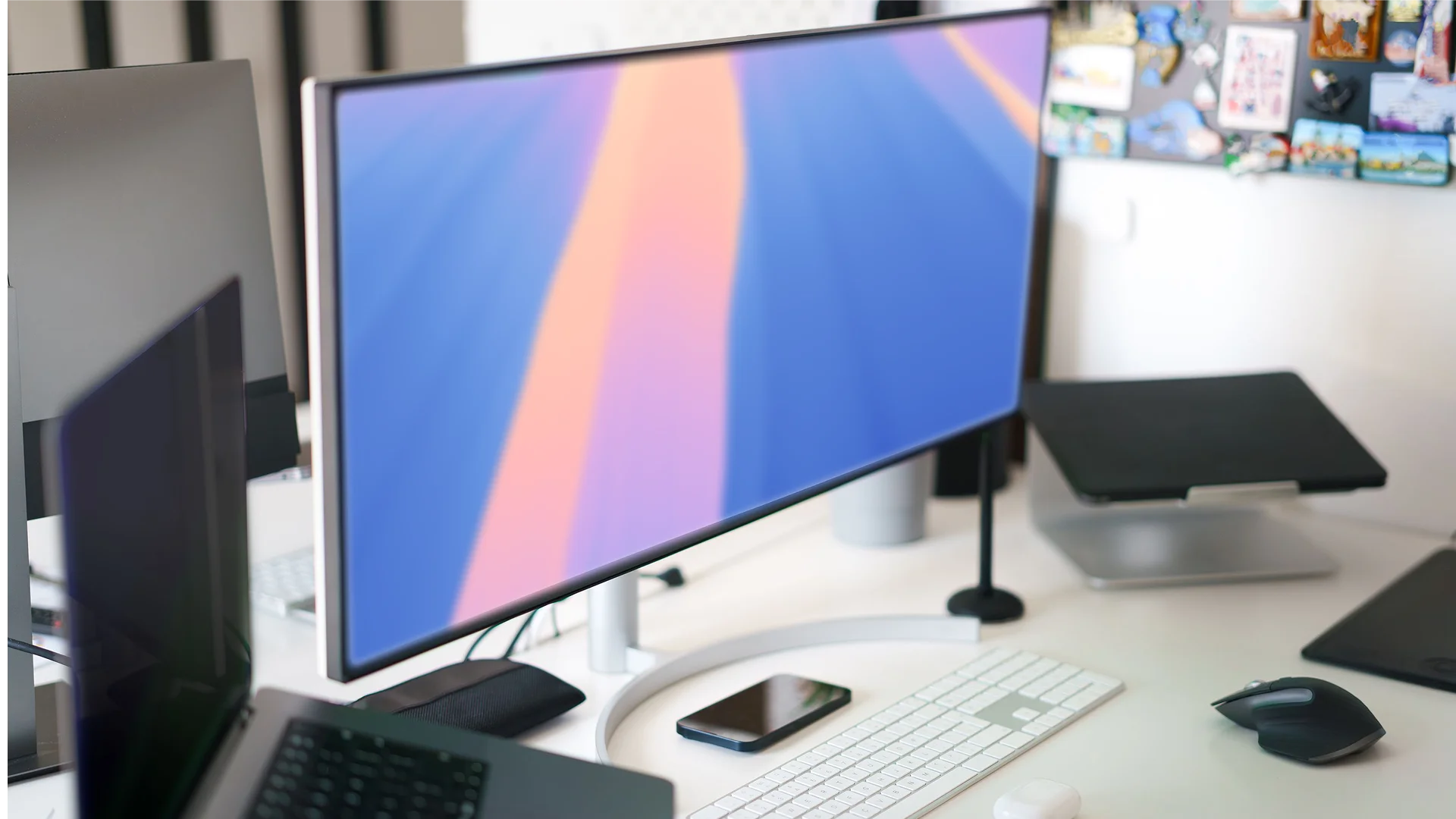
Tablet deployment works well when employees can move quickly between workstations. A practical setup includes:
One compatible USB-C / Thunderbolt docking station at each workstation.
A monitor, keyboard and mouse at each workstation.
A wired network connection where reliable access is important.
One cable for connecting and charging the device through the docking station.
The same connection setup at a desk for tablets and laptops.
This is where tablets and laptops complement each other. Compatible docking stations let employees move from meetings and client visits to desk work without reconnecting the monitor, keyboard and mouse separately each time. For the IT department, this offers the following benefits:
Fewer cable and connection types.
Easier maintenance of workstation equipment.
Faster equipment replacement.
Less confusion for users.
Less downtime when moving between workstations.
When a Business Laptop Is Still the Better Choice
Laptops remain the better choice for:
Extended computing tasks that place a heavy load on the processor.
Large, complex Excel spreadsheets.
Local virtualization – for example, running a separate test system in a virtual machine on the work computer.
Older desktop applications that the selected tablet does not support.
Engineering or development tasks with demanding hardware requirements.
Recommendations for effective use, based on hands-on deployment experience:
Well suited to extended desk work without frequent movement.
Often more convenient for users who need a full built-in keyboard and a large screen.
Better suited to working at a desk than standing or moving frequently.
More convenient for extended work than for short meetings that involve moving between rooms.
Do not choose tablets as the standard for every role. Use them for employees who frequently change workstations, attend meetings and visit clients. Keep laptops for tasks that require extended work and consistent performance under load.
Business Tablets vs Laptops: What Matters Most
Before choosing devices for the whole team, compare tablets and laptops against the factors that matter to small and medium-sized businesses. Consider portability, how quickly work can resume, data entry on site, docking station connectivity, performance and the ability to set consistent equipment requirements.
Criterion | Business Tablets | Laptops | Winner |
Mobility | More convenient for handheld use and frequent movement | More convenient for desk work | Tablets |
Wake-up speed | Quick resume on supported models | Quick resume is also possible | Depends on the model |
Presentations | Easy to hold, show materials and take notes | Convenient for presenting at a desk or through an external display | Tablets for handheld use |
Data entry on site | Touch input, digital pen, camera and mobile internet where supported | More convenient for tasks involving extensive keyboard input | Tablets for forms and on-site notes |
Docking station connectivity | Work with compatible USB-C / Thunderbolt docking stations | Work with compatible USB-C / Thunderbolt docking stations | Equal with compatible setups |
Performance under sustained load | Compact models may have cooling limitations | Models with a suitable processor and cooling system are better suited to sustained loads | Laptops for demanding tasks |
Consistent equipment requirements | Suitable for employees who move frequently, provided the required applications are supported | Suitable for teams working mainly at desks | Depends on employees’ tasks |
Best fit | Meetings, site visits and different workstations with the required applications | Extended desk work and demanding tasks | Depends on the tasks |
The principle is simple: tablets are more convenient when employees move frequently and use the device in their hands. Laptops are preferable for extended desk work and demanding tasks. For teams that need portability and a consistent connection setup across workstations, tablets can serve as primary devices if they support the required work applications.
Conclusion
For employees who frequently move between workstations and visit clients, business tablets can be the more practical choice. They make it easier to move from desk work to meetings and everyday tasks outside the office. Compatible docking stations provide the same way to connect a monitor, keyboard and mouse at different workstations.
Laptops are still needed for extended work and demanding tasks. For meetings and site visits, tablets may be better suited as primary devices when their capabilities match employees’ tasks. Equip your team with the right hardware: explore the range of business tablets, select compatible docking stations and establish a consistent connection setup across workstations.
FAQ
Which Device Is Better for a Sales Team?
A business tablet is often more convenient for meetings, presentations and updating information on the go. It is easier to carry and use in your hands. Before choosing one, make sure it supports the required customer relationship management system (CRM) and other work applications.
Which Device Can Reduce Downtime?
A tablet with a compatible docking station can reduce the time needed to move between a desk and a meeting. The same setup is also available for laptops: the result depends on equipment compatibility and workstation configuration.
When Should You Still Use Laptops?
Choose laptops for tasks that require consistent performance or extended keyboard use. These include engineering calculations, complex spreadsheets, running virtual machines directly on the device and desktop applications that the selected tablet does not support.