
First, Check Which PCs Can Run Windows 11
List each computer’s model, processor, RAM and storage capacity, Windows version, condition and the employee’s tasks. Note the software and connected equipment they need for work. For an accounting workstation, for example, check the accounting application, electronic signature tools and printer as well as the PC itself.
Windows 11 has minimum requirements: a compatible processor, at least 4 GB of RAM and a storage device with a capacity of at least 64 GB. The computer must also support secure startup and hardware-based protection of security keys. Microsoft’s requirements specify UEFI firmware, Secure Boot capability and a TPM 2.0 module.
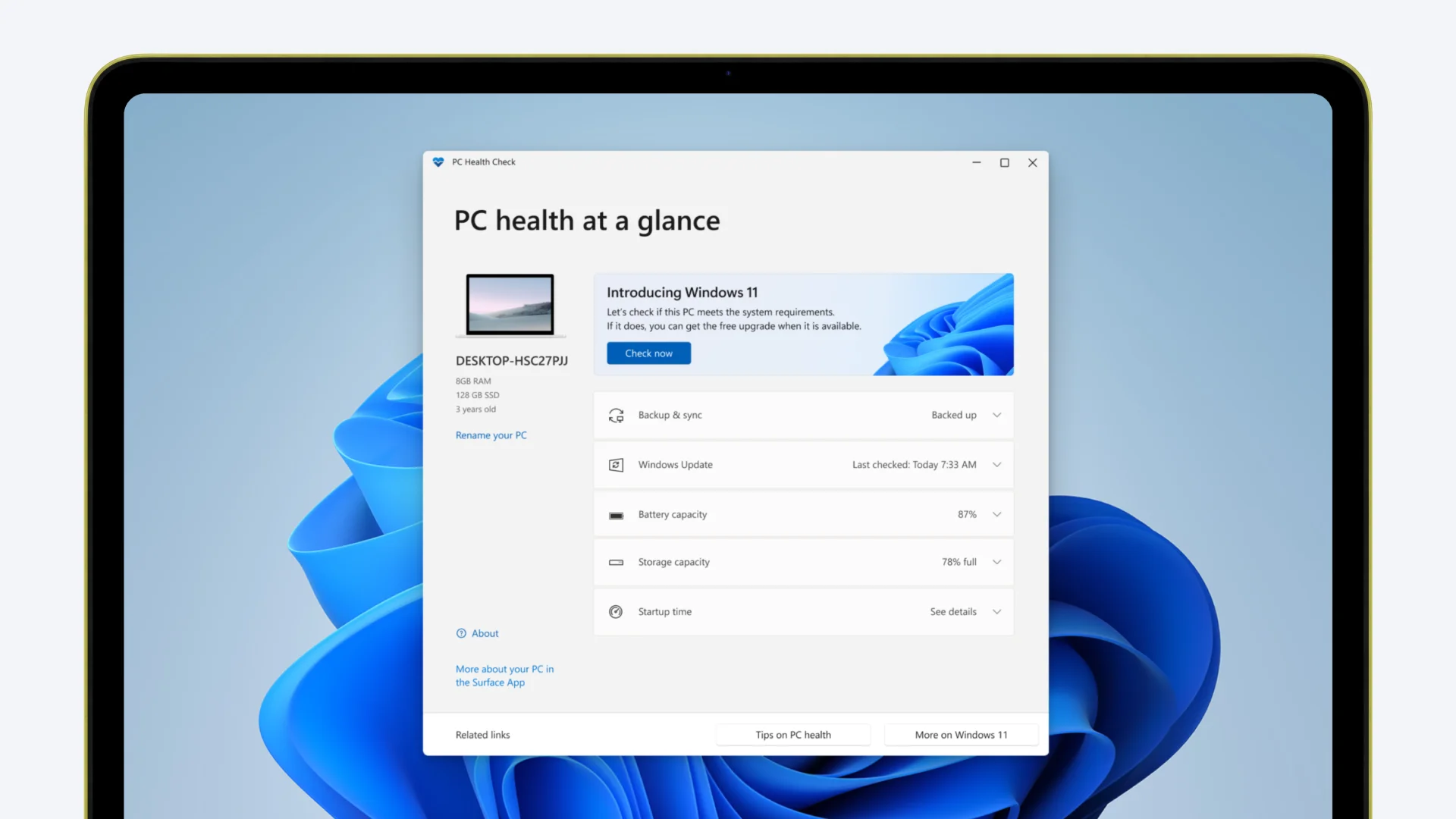
You do not have to check every item manually. Microsoft’s free PC Health Check app shows whether a computer qualifies for Windows 11 and what is blocking the upgrade. If the check identifies a disabled security feature, an IT specialist can determine whether it can be enabled in the settings. If the processor is unsupported, changing settings will not help.
Once the hardware has been checked, confirm that essential applications, printers and other devices will work with Windows 11. Meeting the minimum requirements allows the system to be installed, but does not guarantee that an older PC will be fast enough for everyday work.
When Upgrading the Existing PC Is More Cost-Effective

Upgrading to Windows 11 makes sense if the PC meets its system requirements, runs reliably and handles the employee’s tasks. For eligible devices, the upgrade through Windows Update is free, but preparation still takes time.
Before upgrading, back up your work data and check the compatibility of essential software and connected equipment. Schedule the upgrade for a time when the computer can be taken out of use.
If the device is in good condition, adding memory or replacing the storage drive may extend its useful life. Compare the cost of these improvements and the technician’s work with the cost of a new PC, including setup and data transfer.
When Replacing the PC Makes More Sense

Replacement makes sense if the PC still cannot meet Windows 11 requirements after checking its settings and assessing possible hardware upgrades. Other reasons include frequent faults, slow performance or repair costs comparable to the cost of a suitable new device.
For example, a computer may regularly freeze when running the main business application and a video call at the same time. Upgrading to Windows 11 alone will not resolve insufficient performance. The company should consider both repair costs and working time lost due to these disruptions.
Microsoft does not recommend installing Windows 11 on devices that do not meet its system requirements. These devices are not guaranteed to receive updates, including security updates. Choose a new PC based on the employee’s software, connected equipment and workload, rather than price alone.
Upgrade or Replace: A Decision Table
Factor | Upgrade the existing PC | Replace the PC | Use ESU temporarily |
Device condition | In good condition and eligible for Windows 11 | Incompatible, worn out or too slow | Remains on an eligible Windows 10 version for now |
Main costs | Assessment, data transfer, possible hardware changes | New PC, setup and data transfer | ESU licence and a later transition |
Effect on work | Allow time for the upgrade and application checks | Prepare a new workstation | The transition is delayed, but preparation is still required |
Longer-term use | Supported Windows 11 on the existing PC | Supported Windows 11 on a new PC | Limited Windows 10 security updates |
Suitable when | The PC is compatible and works well | Repair and downtime costs are too high | The transition is delayed until a specific date |
Compare more than the price of the computer or licence. Include setup, application testing and the time during which an employee may be unable to use their usual workstation. Different departments in the same company may therefore need different decisions.
When ESU Can Buy More Time

Suppose an essential business application has not yet been tested on Windows 11, and the department cannot interrupt work for an immediate PC replacement. For these devices, the commercial ESU programme, or paid Extended Security Updates, may provide a temporary solution. It supplies critical and important security updates to enrolled PCs, but adds no new features and does not restore normal Windows 10 support.
The programme requires Windows 10 version 22H2. Microsoft lists Pro in commercial use, Enterprise and Education among the eligible editions. The edition is the variant of Windows installed on a device; it can be checked in the system information. Confirm eligibility for the specific PCs before purchasing licences.
ESU has fixed periods. Year one ends on 13 October 2026, year two on 12 October 2027, and year three on 10 October 2028. Buying late does not provide a full year of updates. Later periods require licences for the earlier periods. Under Microsoft’s published terms, the licence price doubles each consecutive year. Confirm the actual cost for your company before purchasing.
Use ESU for specific computers when migration is delayed by application testing, procurement timelines or a staged replacement. Assign an owner and a transition date to each one. Otherwise, costs will continue to rise while the replacement decision remains unresolved.
How to Organise the Office Transition
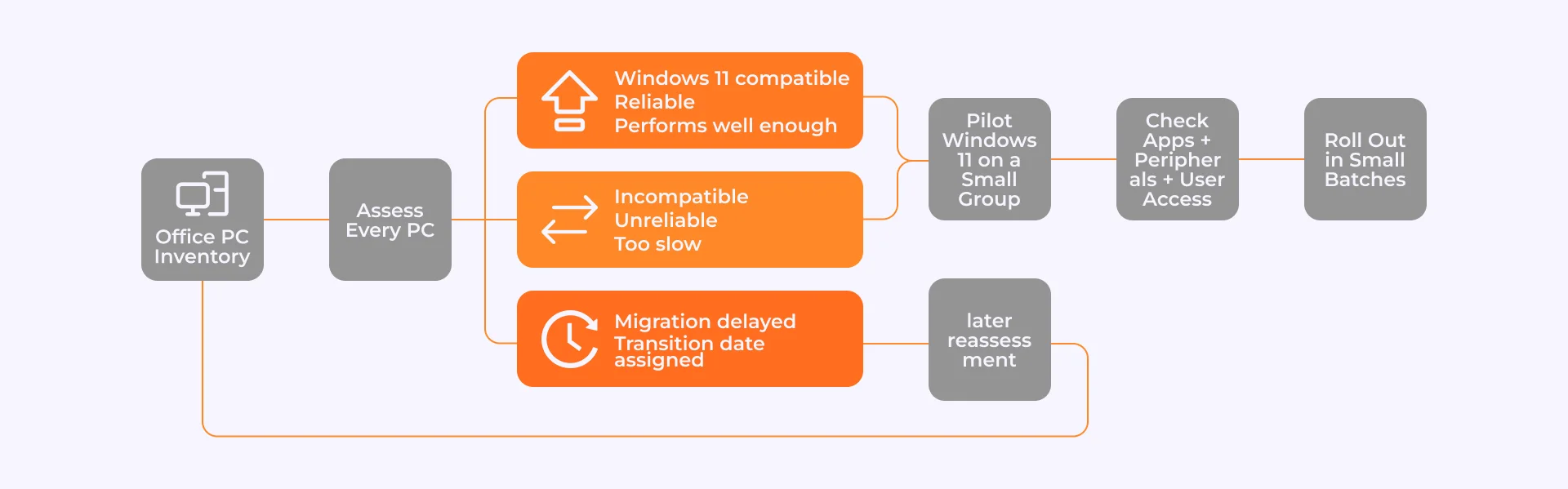
Divide the computers into three groups: move to Windows 11, replace, and temporarily retain on Windows 10 with ESU. Start with devices that no longer receive security updates and computers whose faults cause the greatest disruption to the company’s work.
Test Windows 11 on a few PCs together with the applications and connected equipment employees use. If they can complete their normal tasks, move the remaining devices in small batches. Before the transition, confirm that work files have been backed up and the employee can access the necessary accounts.
For a compatible PC with a licensed copy of Windows 10, upgrading to the same edition of Windows 11 is free. A separate license may be needed if the new computer comes without Windows or a different edition is required. Before purchasing, check your existing license and what is included with the PC.
Final Verdict: Which Option to Choose
Move PCs to Windows 11 when they are in good condition, meet its requirements and still handle their workloads. Replace computers that remain incompatible after assessment, along with unreliable devices. Use commercial ESU only where the transition needs to be delayed and a migration date has already been set.
If you need to organise your office’s transition from Windows 10 to Windows 11, discuss workstation upgrades with ITmathics, taking into account existing computers, the applications in use and employee tasks.
FAQ
Will a PC Still Work Without ESU?
Yes. End of support does not disable the PC. Windows 10 version 22H2 without ESU no longer receives regular operating-system security updates or standard support. ESU provides limited security updates to eligible enrolled computers.
Is Enabling TPM 2.0 Enough to Move to Windows 11?
No. The PC must meet the other requirements too. If the compatibility check identifies an unsupported processor, changing the TPM setting will not help.
Do Updates for Word and Excel Mean Windows 10 Is Still Supported?
No. Microsoft provides security updates for Microsoft 365 apps on Windows 10 until 10 October 2028. Those are updates for the applications, not for the operating system itself.