Tools You Will Need
A VESA-compatible monitor, a single or dual monitor mount, suitable screws, a screwdriver, a ruler or tape measure, and about 10 minutes of free time.
When equipping an office, also check the thickness and material of the desk surface before ordering mounts for multiple workstations.
Step 1: Check Whether Your Monitor Supports VESA
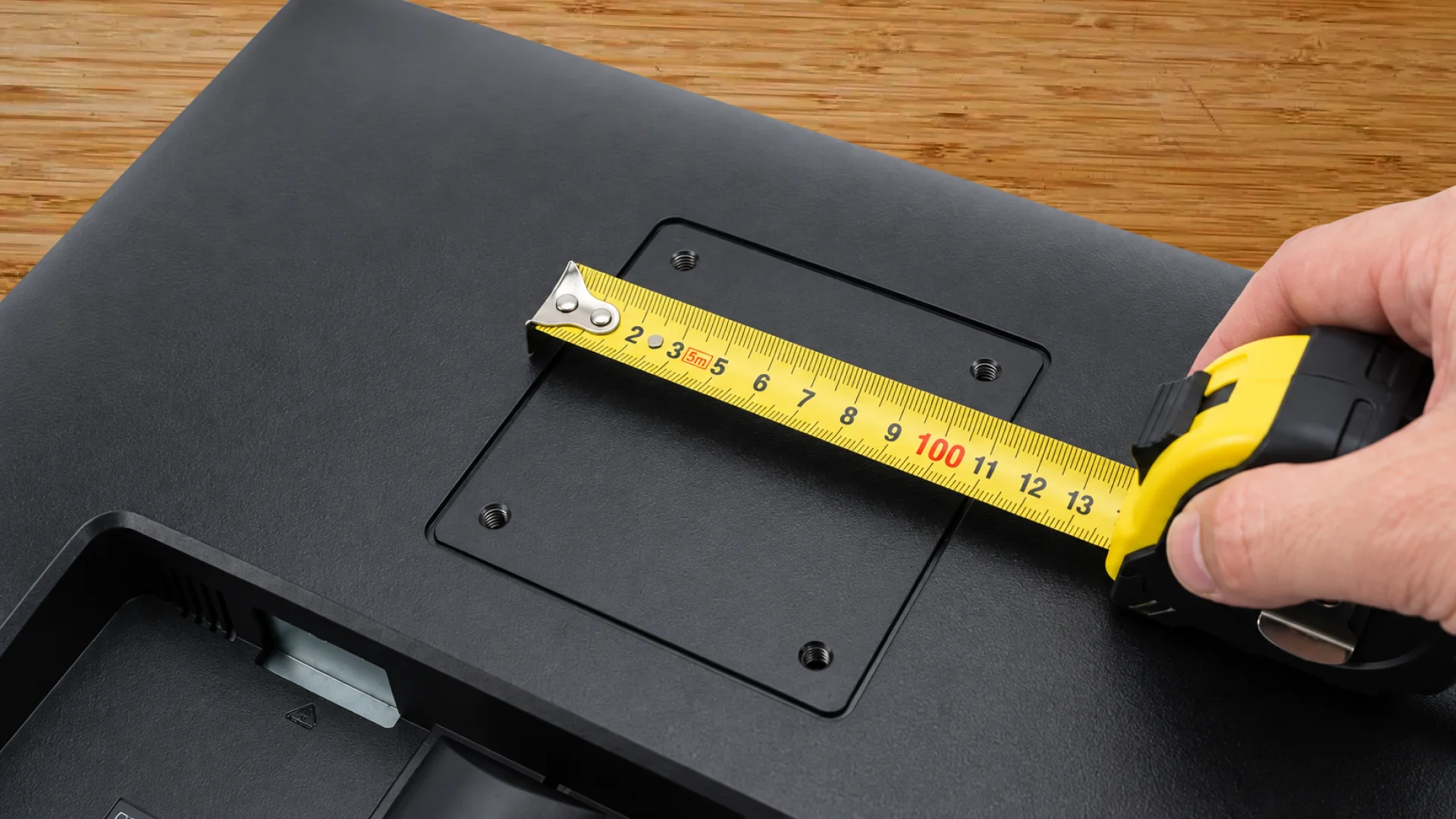
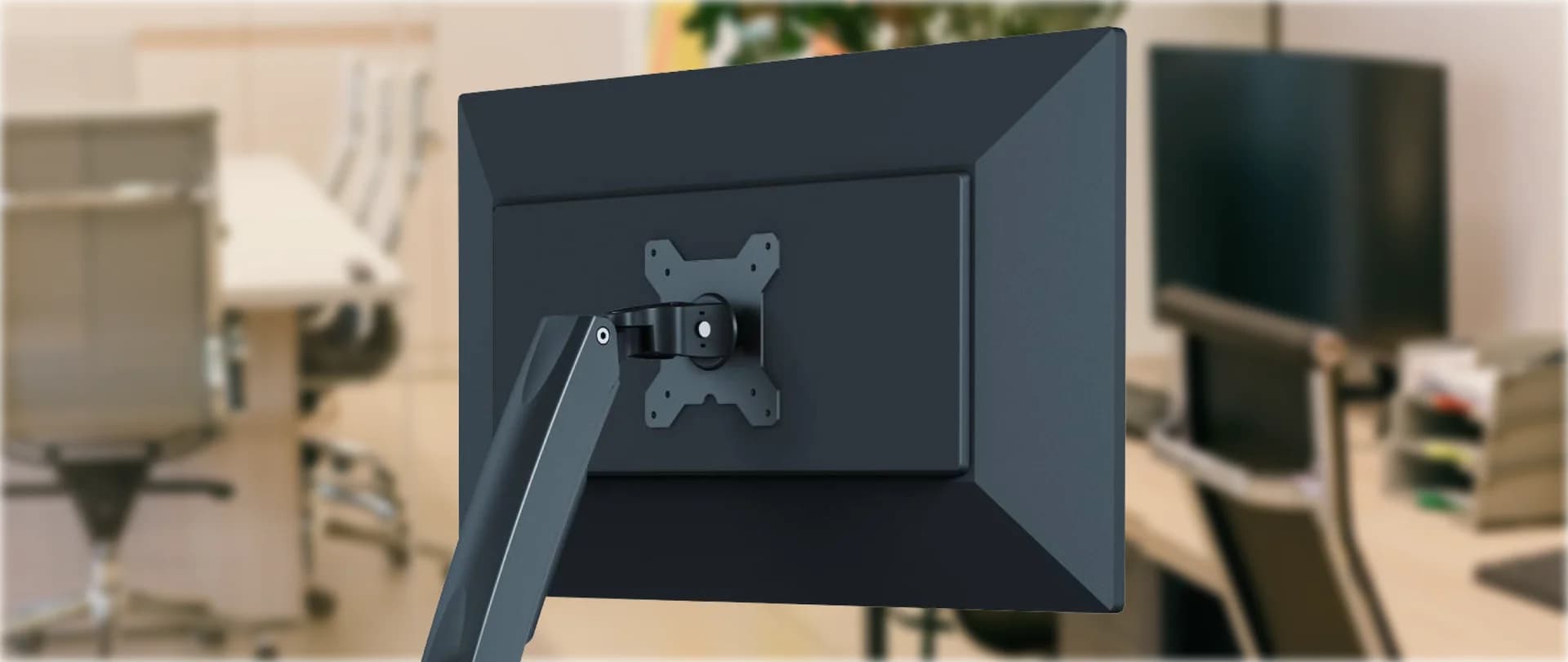
Turn the monitor around and look for four screw holes arranged in a square or rectangle. They are usually located near the centre of the back panel. If the holes are not immediately visible, check beneath a removable cover or the factory stand.
You can also check the product specifications, user manual or manufacturer’s website. Look for terms such as “VESA-compatible monitor”, “VESA 75 × 75” or “VESA 100 × 100”.
The quickest way to check the mounting pattern is to measure the distance between the centres of the left and right holes, followed by the centres of the top and bottom holes. If both measurements are 100 mm, your monitor has a VESA 100 × 100 mounting pattern.
Step 2: Determine the Correct VESA Mounting Pattern for Your Monitor
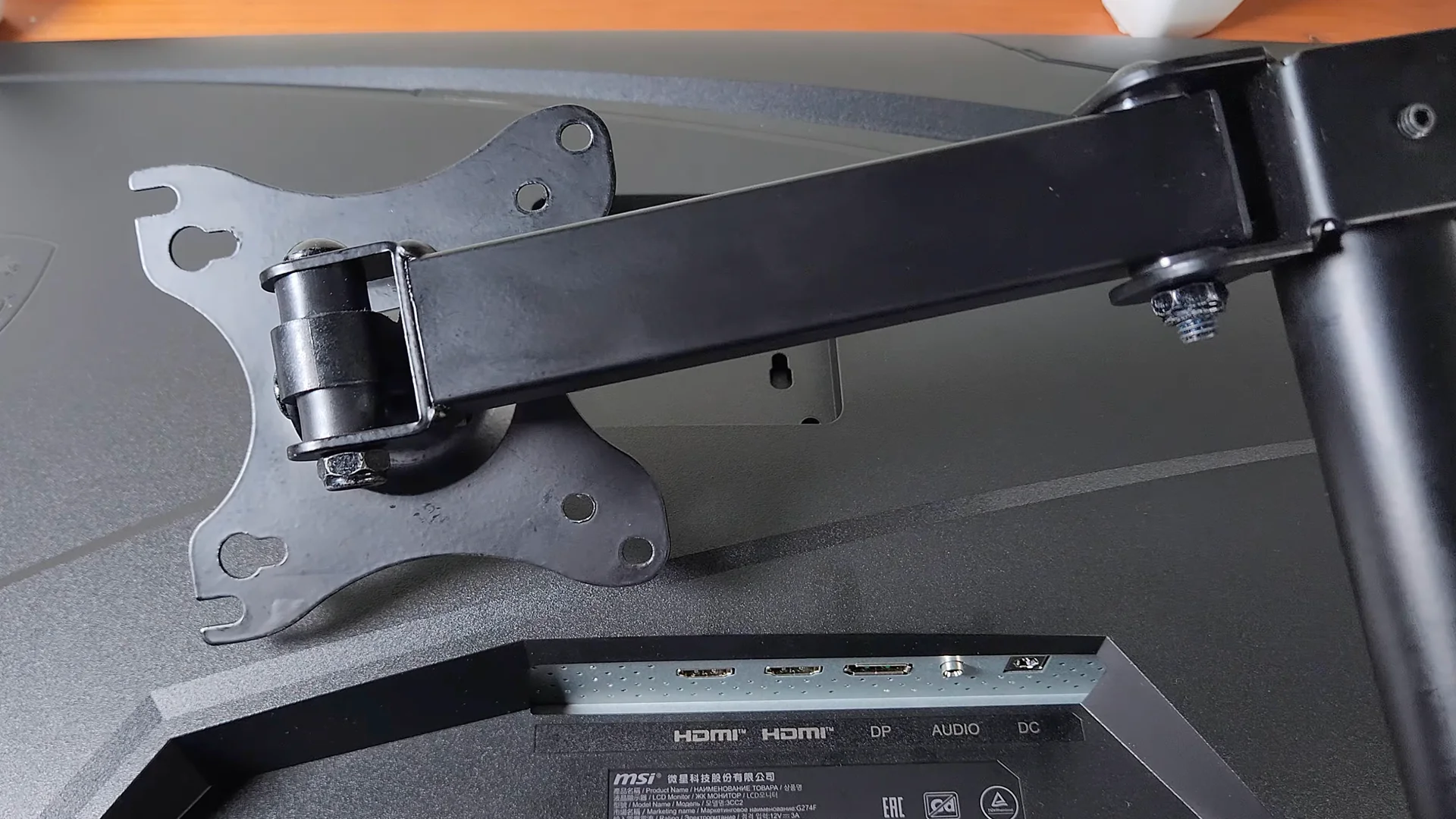
Match the mounting plate to the VESA pattern on your monitor. For most office monitors, this will be 75 × 75 mm or 100 × 100 mm. Larger displays may use wider patterns, such as 200 × 100 mm or 200 × 200 mm. Also check the weight of the monitor without its stand.
Screen size is useful information, but the VESA pattern, monitor weight and mount’s load capacity are more important when checking compatibility. The correct mount must support both the monitor’s VESA pattern and its weight so that the setup remains stable and easy to adjust.
Step 3: Remove the Monitor’s Factory Stand
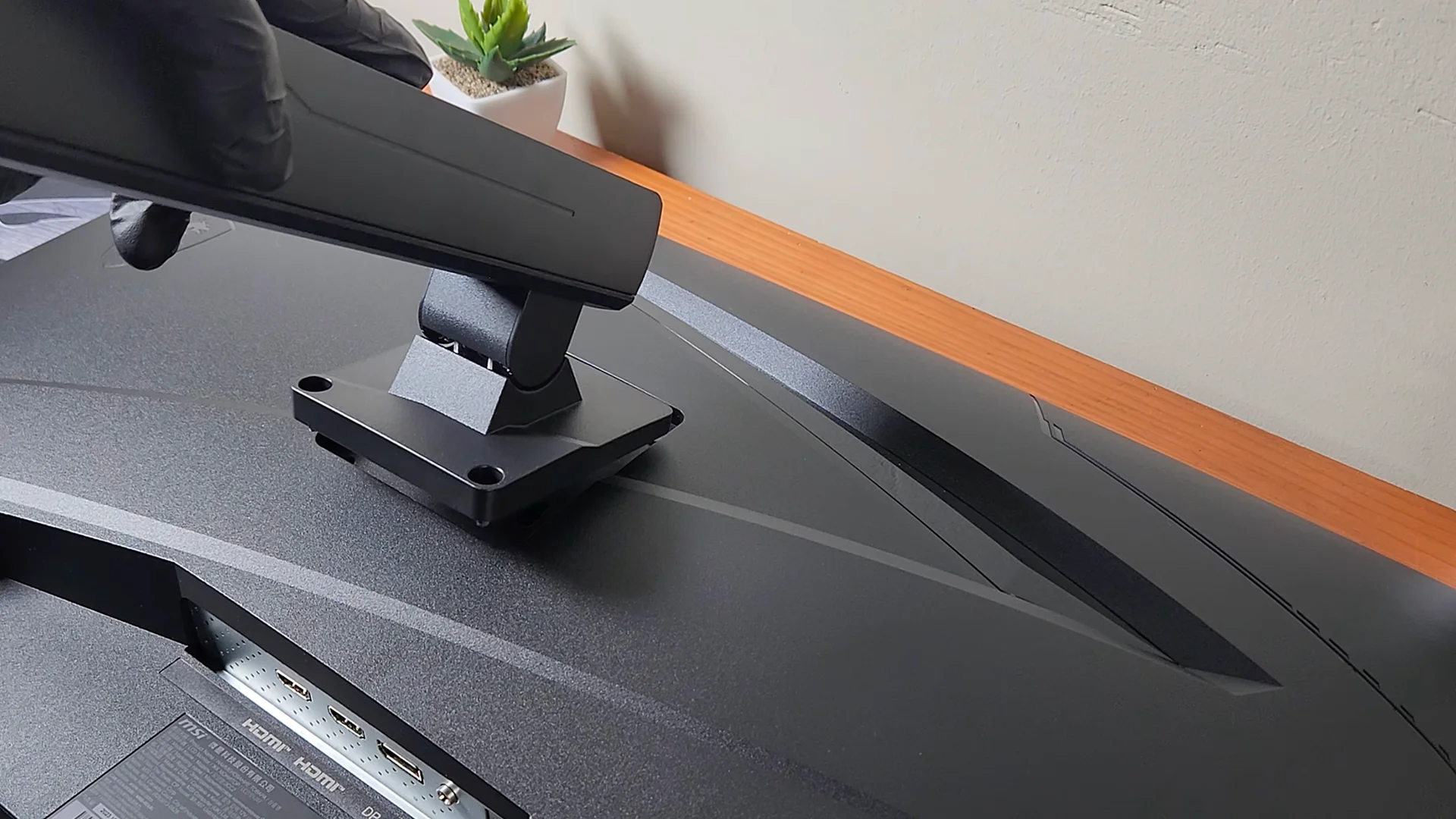
Disconnect the monitor from power and place it screen-down on a clean, soft cloth. Remove the factory stand using the release latch, screws or another locking mechanism specified by the manufacturer. Keep the factory stand screws separate from the VESA screws, as they may have a different length or thread specification.
Once the factory stand has been removed, the workspace changes noticeably. The screen no longer rests on a bulky base and takes up less space on the desk surface. It is mounted above the work area, leaving more room for the keyboard, docking station and everyday tools.
Step 4: Install the Monitor on a Single or Dual Monitor Mount
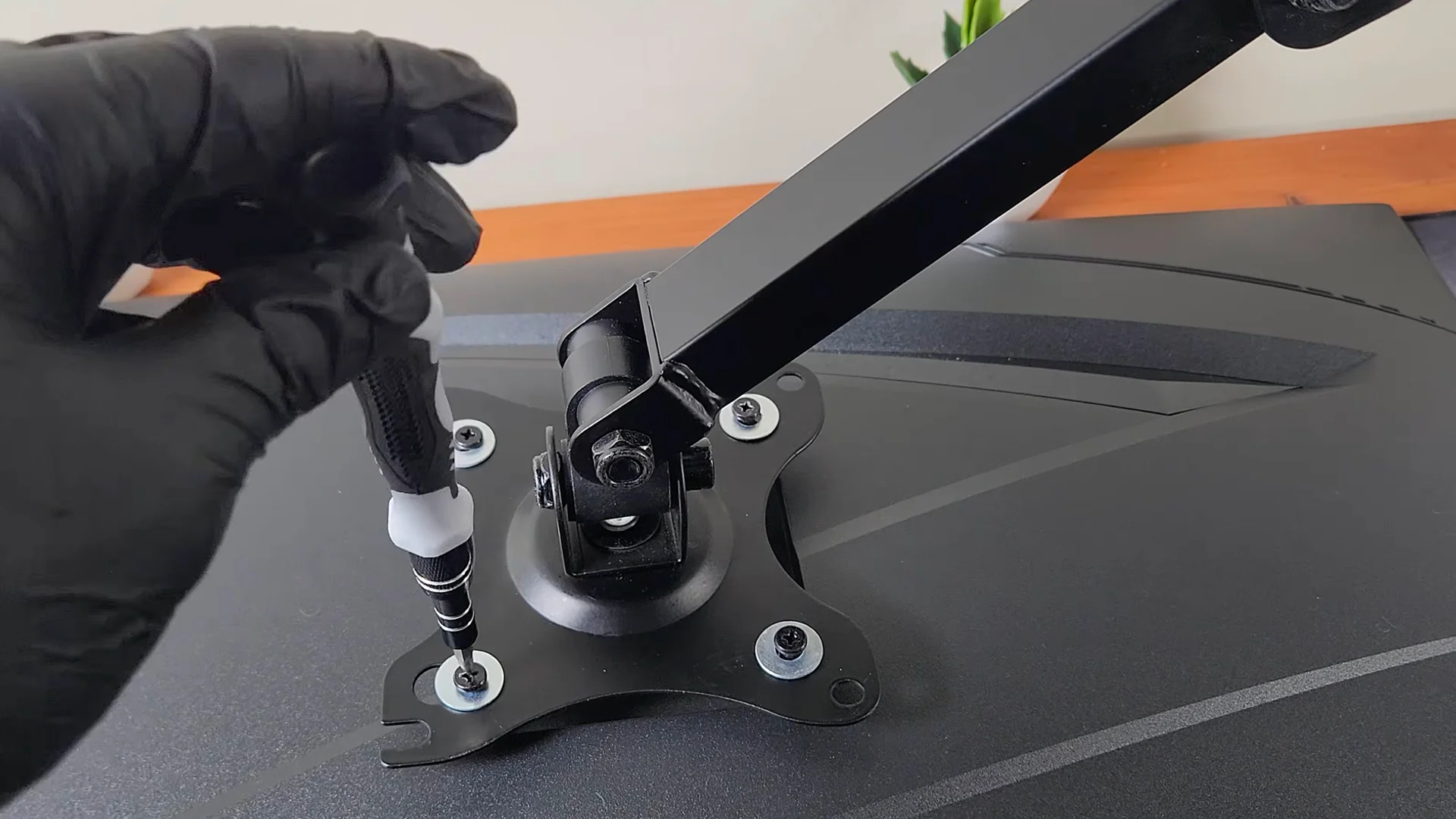
Align the VESA plate with the four mounting holes and insert the screws. Tighten the screws evenly in a cross pattern without applying excessive force, until the plate sits flat and firmly against the monitor. If the mounting holes are recessed, use the spacers supplied with the mount or an adapter recommended by the monitor manufacturer.
When installing a dual monitor mount, first position both screens at the same height. If necessary, angle the second screen slightly inward. This arrangement makes it easier to work with multiple applications and reduces the need to turn your head when switching between screens.
Monitor mounts allow you to adjust screen height, tilt, swivel, depth and orientation. They also free up desk space and help keep cables neatly organised.
Step 5: Adjust the Screen for an Ergonomic Workspace
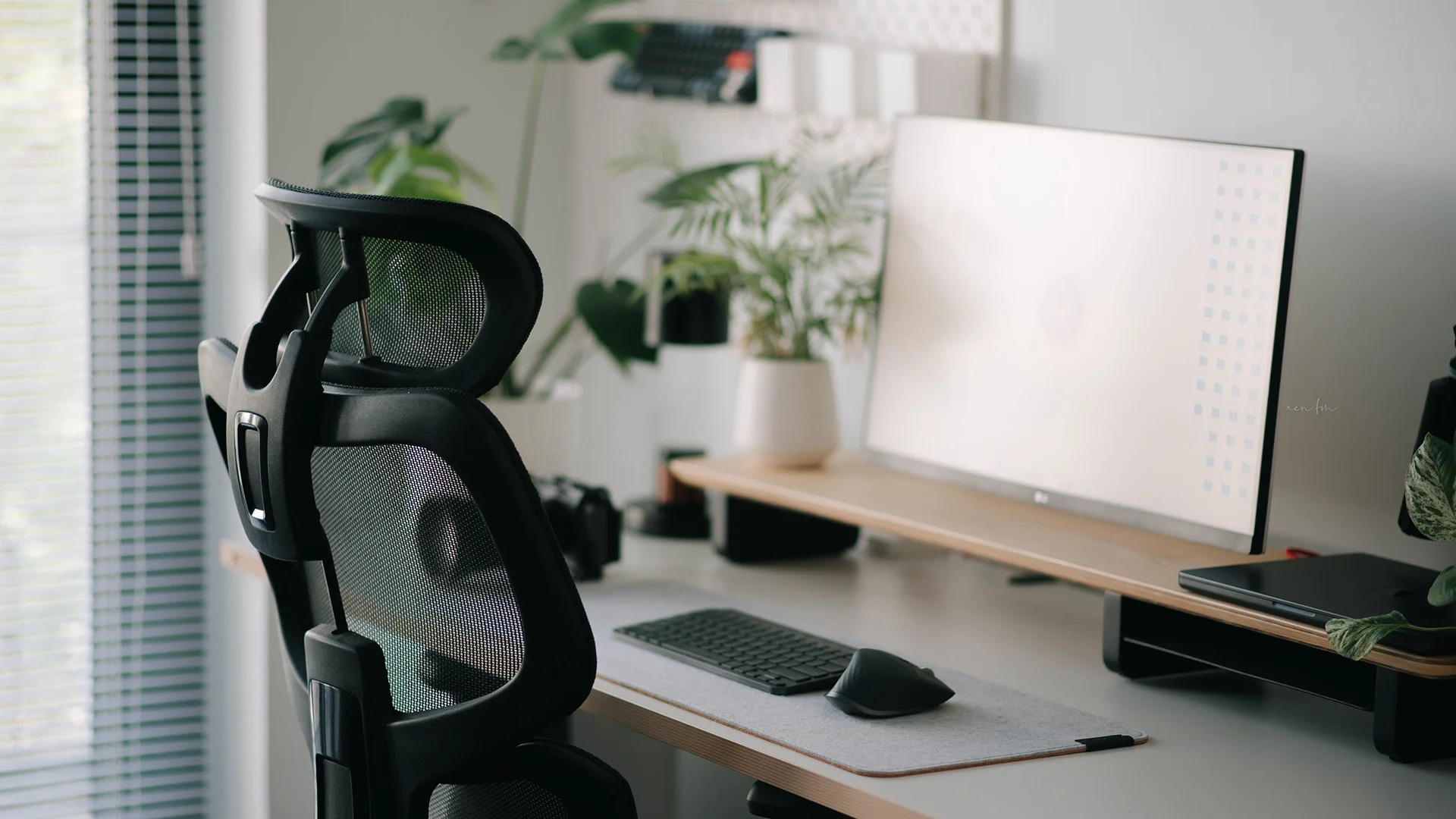
Position the top edge of the screen approximately at eye level or slightly below it. The viewing distance should be about an arm’s length, but it should also be adjusted according to the screen size and personal comfort.
Route the power and signal cables through the cable clips on the mount, leaving enough slack for the mount to move freely. Keep only the tools you use every day on the desk.
For small offices, this is a simple upgrade with practical Total Cost of Ownership (TCO) benefits. Standardising monitor mounts can simplify future screen replacements, the organisation of shared workstations and the addition of new workstations.
IT teams can use one consistent mounting approach instead of solving the same desk setup problem again whenever a monitor is replaced.
Common VESA Mount Installation Mistakes to Avoid
Buying a monitor mount without first checking the VESA pattern.
Checking the screen size without considering the monitor’s weight.
Using screws of the wrong type or length.
Installing a dual monitor mount on a thin or unstable desk surface.
Ignoring recessed VESA holes that may require spacers or an adapter plate.
Create a More Organised Desk with the Right VESA Setup
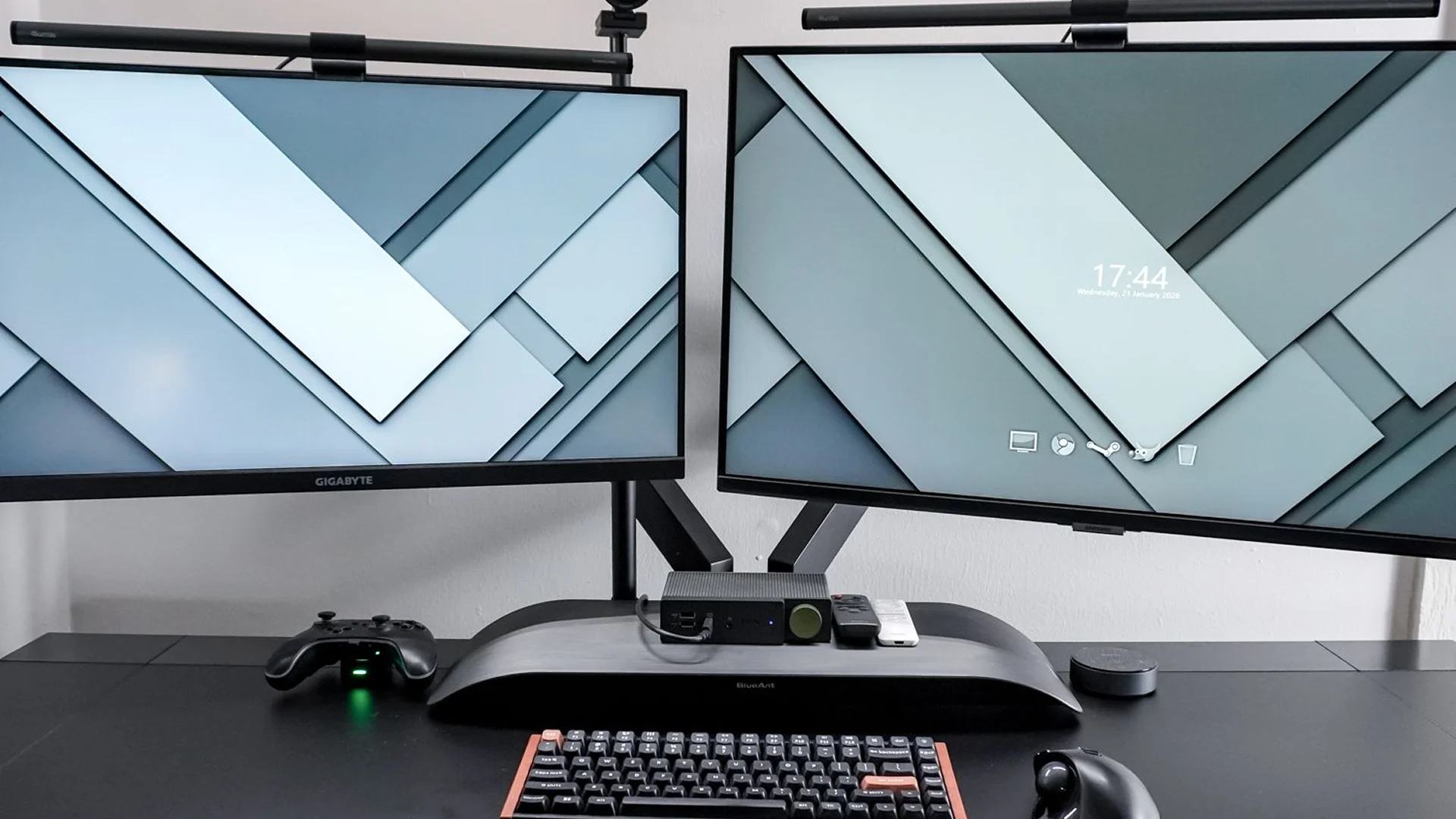
A VESA-compatible monitor turns a fixed screen into an adjustable part of the workspace. It frees up desk space, simplifies cable management and allows each user to position the screen at a comfortable height.
For home users, this means a simpler and more organised workspace. For small and medium-sized businesses, it provides an opportunity to introduce a consistent workstation standard for all employees.
Choose a VESA-compatible business monitor and pair it with a suitable mount. For one screen, use a single monitor mount. For multitasking, use a dual monitor mount so you can work with applications and documents across two screens at the same time.
FAQ
What Is a VESA Mount?
A VESA mount is a standardised interface on the back of a monitor or television, usually consisting of four mounting holes. It allows the screen to be attached to a compatible desk mount, wall mount or stand.
How Can I Tell Whether My Monitor Is VESA-Compatible?
Look for four mounting holes on the back of the monitor. Then measure the horizontal and vertical distances between their centres. Common mounting patterns for office monitors are 75 × 75 mm and 100 × 100 mm.
Can I Use a VESA Mount for Two Monitors?
Yes, provided that the VESA pattern of each monitor is compatible with the mount and the weight of each screen does not exceed the load capacity of the corresponding arm. In an office, a dual monitor mount is a simple way to align two screens and free up desk space.