
Before You Begin

Start by reviewing the network currently used in the office.
Identify the router and access point models, the number of devices connected at the same time, the office layout, wall materials and the condition of the network cables. You should also check whether the network equipment has enough speed and power for all access points. Many access points receive power through a network cable. This technology is called PoE.
If equipment needs to be replaced, treat the access points, network cables and other hardware as parts of a single project.
A Wi-Fi upgrade should consider the entire connection chain: the employee’s laptop or phone, the access point, network equipment, cables and internet connection. Simply increasing the internet connection speed will not solve problems originating within the office network.
Step 1. Check Whether Your Office Is Still Using Wi-Fi 5

Wi-Fi 5 can still perform adequately in small offices with moderate network demand.
Problems become more noticeable when many laptops, phones, printers, cameras and other devices use the wireless network at the same time. Devices have to wait for their turn to transmit data, causing the network to slow down.
This can lead to delays, unstable calls, slower file transfers, reduced application performance and more requests for technical support.
If employees regularly experience these problems, check the age and capabilities of the access points and the main connected devices. Wi-Fi 5 may not be the only cause. An overloaded network, poor equipment placement or insufficient coverage may also be responsible.
Step 2. Understand What Wi-Fi 6 Improves
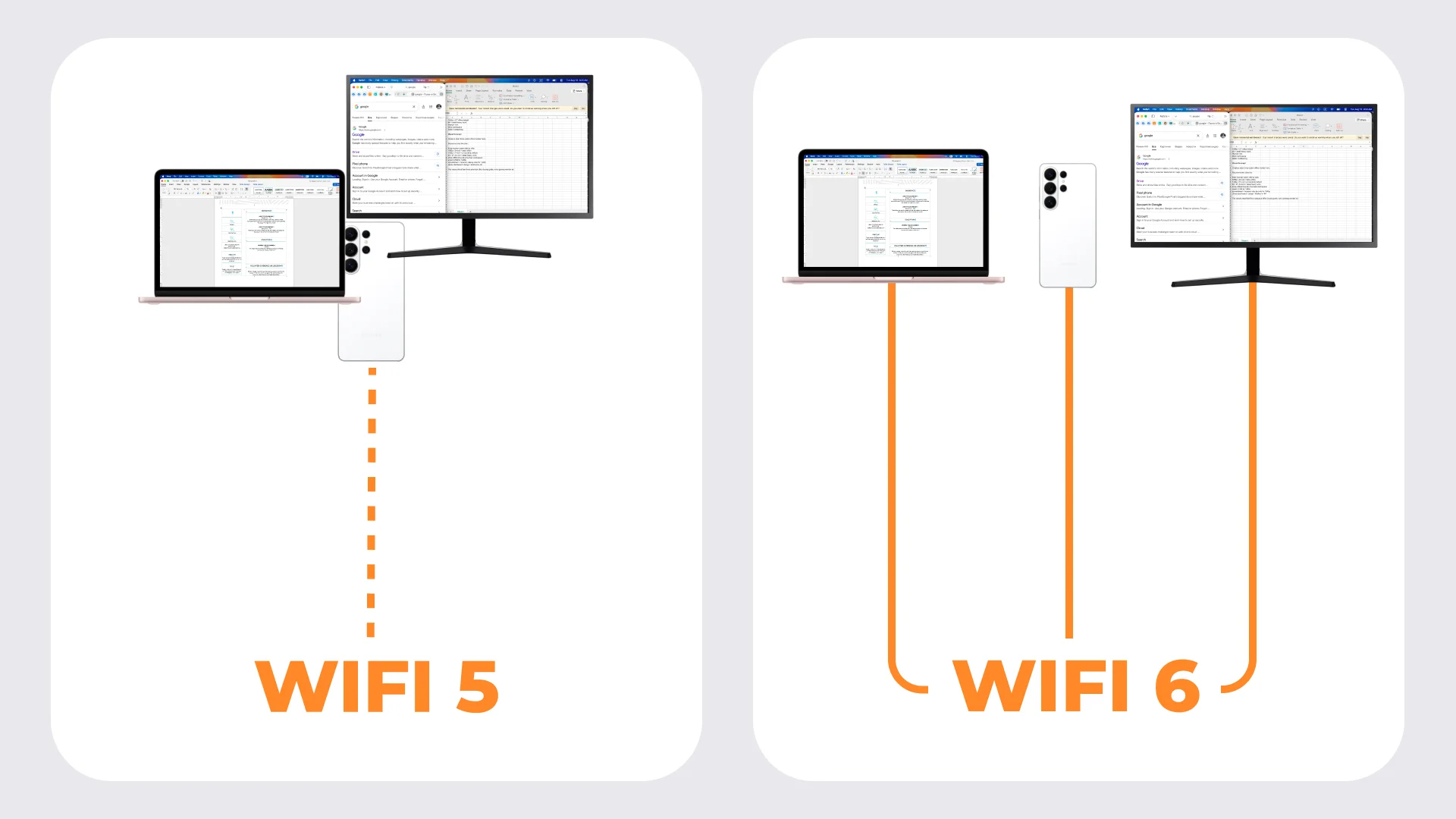
Wi-Fi 6 is designed to operate more efficiently when many devices use the same wireless network at the same time.
Wi-Fi 6 allows an access point to manage connections between multiple devices more efficiently. As a result, laptops, phones and other devices spend less time waiting to transmit data, helping the network remain stable under heavy load.
Maximum speed is not the only factor that matters to users. In practice, the main advantage of Wi-Fi 6 is greater network stability when many devices are transmitting data at the same time.
Wi-Fi 6 therefore remains a reliable foundation for cloud applications, Teams calls and everyday office tasks. Several correctly positioned access points managed as a single system are usually more effective than one powerful home router expected to cover the entire office.
Step 3. Understand What Wi-Fi 7 Adds
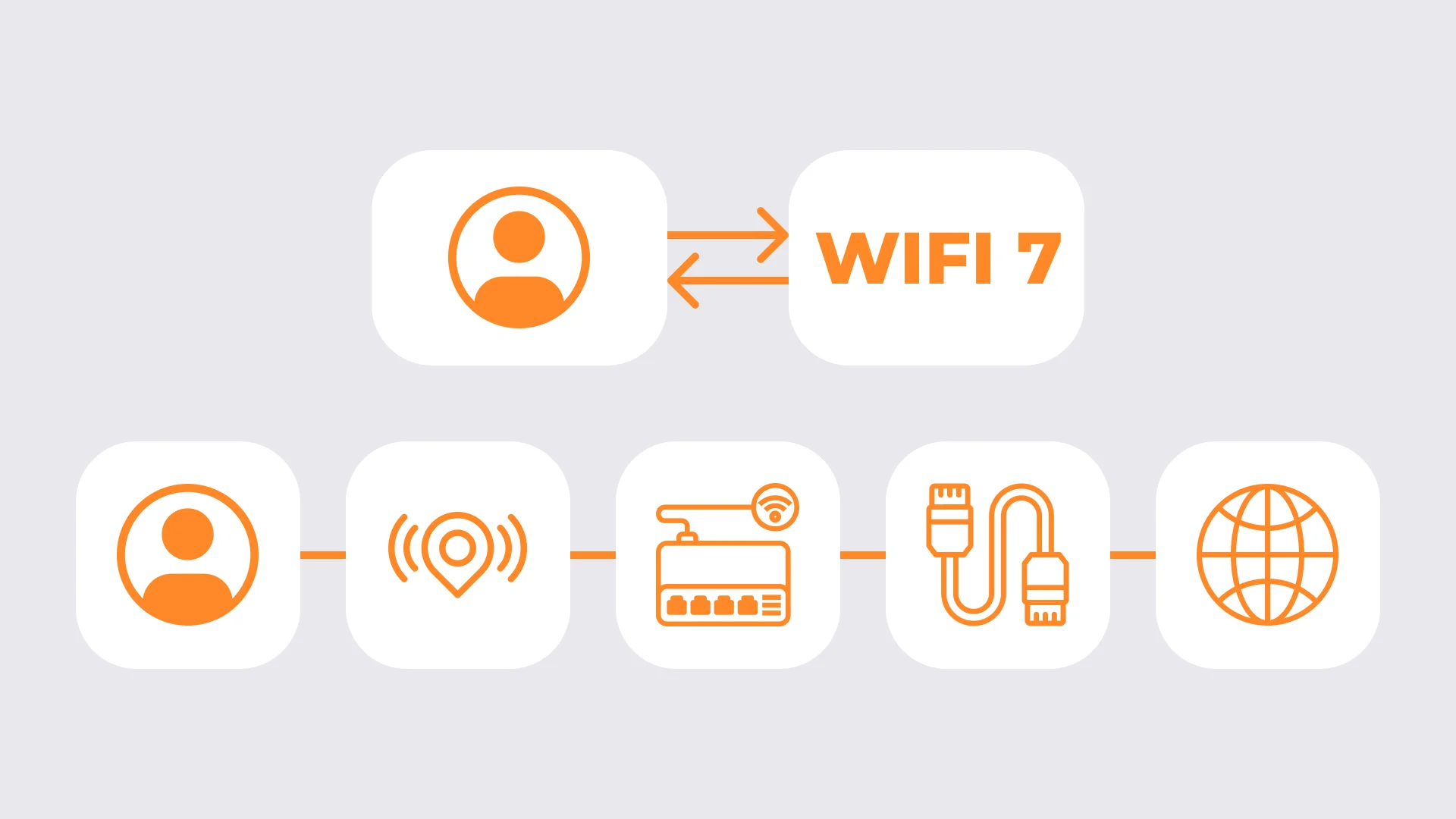
Wi-Fi 7 extends the capabilities of a wireless network. It can transfer data faster, reduce delays and make more efficient use of the available wireless connection.
A compatible device can use multiple wireless connections at the same time. Wi-Fi 7 can also operate in the additional 6 GHz band, which usually has less interference and more room for data. These capabilities must be supported by both the access point and the laptop, phone or other connected device.
Wi-Fi 7 can be useful in offices where many devices actively use the network in the same area, employees regularly transfer large files or the business uses systems that are sensitive to delays. Standard video calls or cloud applications alone are not always sufficient reasons to move to Wi-Fi 7.
Installing Wi-Fi 7 access points will not automatically make the entire network faster. Performance may still be limited by older laptops, poor access point placement, outdated cables, interference or network equipment that does not provide enough speed or power.
Older devices will continue to work, but they will not be able to use all the benefits of Wi-Fi 7. The real value of the new generation depends on the entire office network, not just the access point model.
Step 4. Choose the Standard That Fits Your Office

Choose Wi-Fi 6 if you need a stable office network for cloud applications, Teams calls and many connected devices, but do not need to rebuild the entire existing infrastructure.
For many existing small and medium-sized offices, Wi-Fi 6 remains the most practical option. It provides a good balance of performance, equipment compatibility and implementation cost.
Wi-Fi 7 is worth considering when designing a new office or carrying out a major network upgrade. It is particularly relevant when a company is installing modern high-speed equipment, uses many new devices or plans to operate the network for many years.
The decision should not be based solely on which standard is newer. Consider how the office operates today, which equipment employees actually use and how network demand is expected to grow.
Step 5. Plan the Entire Network, Not Just the Access Points
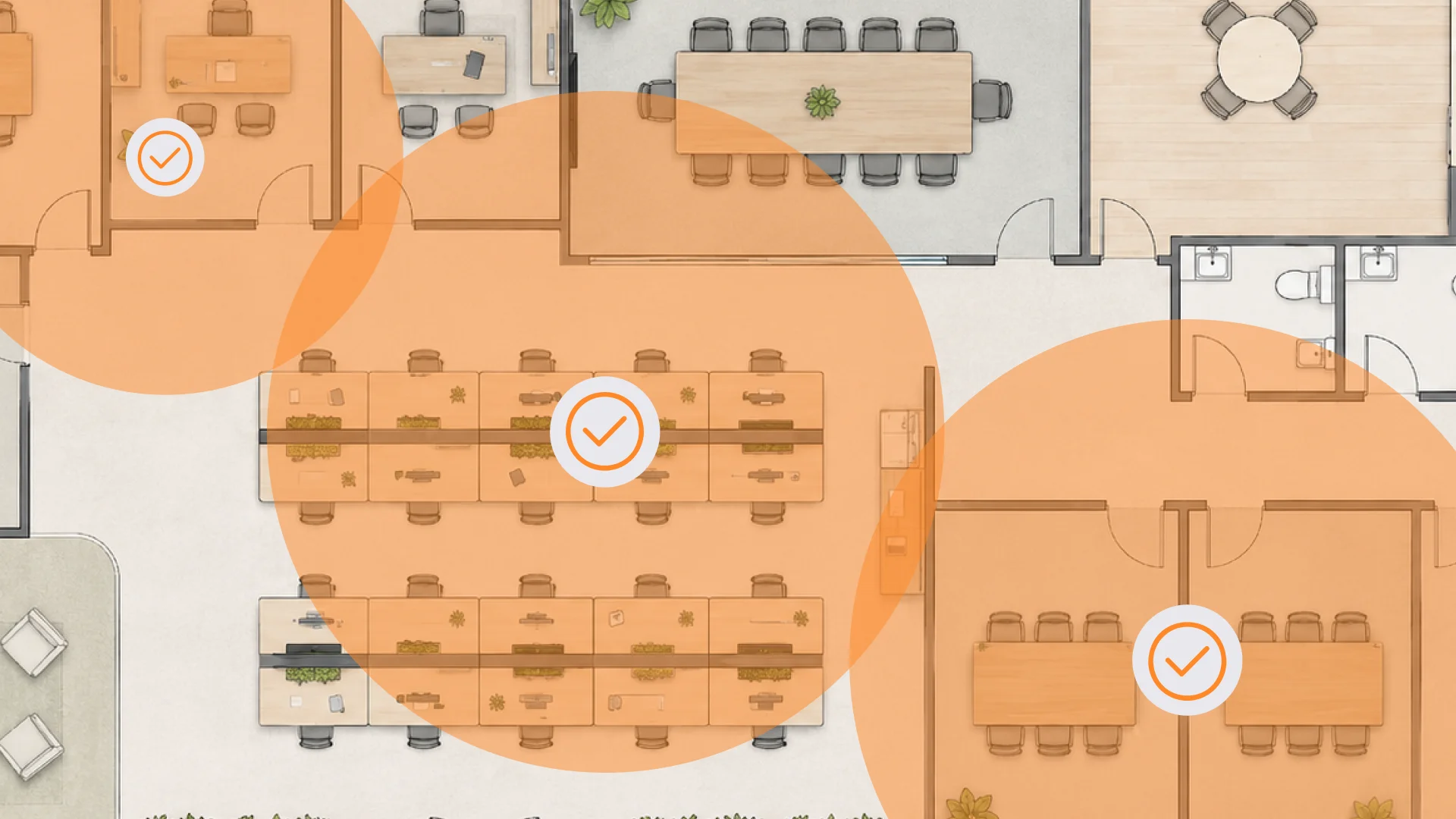
The quality of office Wi-Fi depends on more than the access point model.
Access point placement affects both coverage and signal quality. The network equipment must provide enough speed and power for all installed access points. When an employee moves around the office, their laptop or phone should switch between access points without a noticeable interruption.
Access points should be configured so that they do not interfere with one another or with neighbouring networks. The employee network should also be separated from guest Wi-Fi, cameras, televisions, sensors and other connected equipment.
If a stable network is critical to business operations, access points, network equipment, cables, coverage, security and management should be designed as a single system. Individual devices should not simply be replaced whenever a problem appears.
Common Mistakes
Buying one powerful router instead of several correctly positioned access points managed as a single system.
Failing to check whether the network equipment provides enough speed and power for all access points.
Connecting employee and guest devices, cameras and other equipment to the same network without separating them.
Upgrading access points without checking the cables, other network equipment and compatibility of connected devices.
Expecting Wi-Fi 7 to automatically make older laptops and previous-generation devices faster.
Which Wi-Fi Standard Should You Choose?
For most existing small and medium-sized offices, Wi-Fi 6 remains a proven and practical choice. When correctly designed, it provides a reliable foundation for cloud services, collaboration and large numbers of connected devices.
Wi-Fi 7 becomes a more attractive option when an office is being designed from the ground up or undergoing a major upgrade, and when the network equipment and employees’ devices are ready to use the capabilities of the new standard.
In either case, the Wi-Fi standard is only one part of the overall system. Office network stability also depends on access point placement, network cables, equipment compatibility and performance, configuration quality and ongoing network management.
Need to Upgrade Your Office Network?
We will assess the access points, coverage, network cables, equipment, connected devices and expected growth in network demand. The assessment will identify which changes can genuinely improve network performance and whether a move to Wi-Fi 6 or Wi-Fi 7 is justified.
FAQ
Is Wi-Fi 6 Sufficient for an Office with 30 Employees?
In many cases, yes. However, the number of employees alone does not determine Wi-Fi performance. You also need to consider the number of devices being used at the same time, the office layout, access point placement, the condition of the network cables and the types of applications being used.
Will Wi-Fi 7 Make Older Laptops Faster?
Not necessarily. Older laptops will continue to work, but they will not be able to use all Wi-Fi 7 capabilities. Compatible access points, modern devices and suitable network equipment are required to gain the main benefits of the new generation.
Why Does a Gigabit Fibre Connection Feel Slow over Wi-Fi?
A fibre connection only provides internet speed as far as the office. Wi-Fi performance inside the building can still be reduced by weak coverage, interference, too many devices working at the same time, older laptops, poor access point placement, outdated cables or network equipment that is not fast enough.